Passport Photo Background Rules: White, Grey, Blue, and Country-Specific Requirements
Not every country wants a white background. Learn the specific background color rules for passport photos in the US, UK, France, Germany, and more. Includes tips for background removal.

Why Background Color Matters for Passport Photos
The background of a passport photo is not just an aesthetic choice. It is a strict technical requirement that directly affects whether your photo will be accepted. Immigration authorities use automated systems to verify that photos meet biometric standards, and these systems are calibrated to work with specific background colors.
A background that is too dark, uneven, or the wrong color can cause automated rejection before a human even reviews your application. Shadows, patterns, and visible objects in the background are among the top reasons passport photos are rejected worldwide.
Perhaps most importantly, different countries require different background colors. While white is the most common, several major countries mandate specific shades of grey, blue, or off-white. Using a white background for a French passport photo, for example, will result in rejection.
If the problem is a wrong wall, shadow, or uneven backdrop, start with the background removal hub. If you want the normal workflow to stay in the browser until you choose otherwise, use the passport photo maker without uploading by default. If you still need the full edit route, go to the passport photo maker. If the photo is already made and only needs a final rules check before export, use the passport photo checker.
Country-by-Country Background Requirements
The following table summarizes the background color requirements for the most commonly requested passport and ID photos. Always verify with your country's official passport authority, as requirements can change.
| Country | Background Color | Notes |
|---|---|---|
| United States | White or off-white | Must be plain with no patterns, textures, or shadows |
| United Kingdom | Light grey | Specifically light grey, not white. Cream and off-white also rejected |
| Canada | White or light-colored | Plain and uniform; no patterns or shadows |
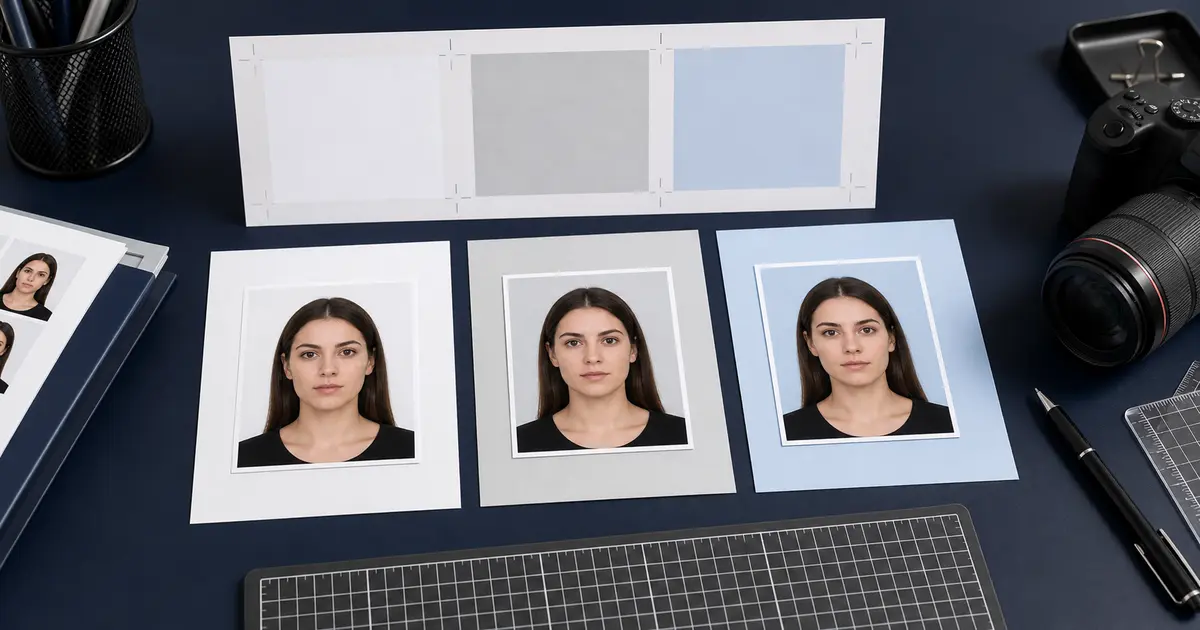
| France | Light grey or light blue | White is explicitly banned. Background must have visible tone |
| Germany | White to light grey | Uniform, without shadow. Slight gradient acceptable |
| Australia | White to light grey | Plain, with no other people or objects visible |
| India | White | Plain white background required |
| Japan | White | Plain white, no shadows, no patterns |
| China | White | For passport. Some visa types require blue or red |
| South Korea | White | Pure white background required |
| Italy | White or light grey | Uniform background, no shadows |
| Spain | White | For passport. DNI photos also require white |
| Brazil | White | Plain white background |
| Turkey | White | Clean white background without shadows |
| Russia | White | Plain white, no visible textures |
| Thailand | White | White background, no patterns |
| Indonesia | Red or blue | Red for odd birth years, blue for even birth years (KTP) |
| Israel | White or light blue | Either accepted for passports |
France Bans White Backgrounds
France is the most notable exception to the "white background" assumption. French passport and ID photos require a light grey (gris clair) or light blue background. Pure white is explicitly prohibited because it can cause overexposure and interfere with biometric scanning. If you are applying for a French passport, ensure your background has a visible grey or blue tint.
White vs Light Grey: What Is the Difference?
The distinction between "white" and "light grey" backgrounds might seem trivial, but it is significant in passport photo processing. In digital terms, a pure white pixel has RGB values of (255, 255, 255). A light grey background typically falls in the range of (220, 220, 220) to (240, 240, 240).
Why Some Countries Prefer Grey
Countries that require light grey backgrounds (like the UK and France) do so for practical reasons. A pure white background can cause overexposure in photographs, washing out facial features and making it harder for biometric systems to detect the edges of the face. A light grey background provides better contrast with light skin tones and reduces the risk of the subject's outline blending into the background.
How to Tell If Your Background Is Right
- Print test: Print your photo and place it next to a sheet of white copy paper. If the background matches the paper exactly, it is white. If it is slightly darker, it is light grey.
- Digital check: In any image editor, use the color picker tool on the background. White is RGB (255, 255, 255). Light grey should be approximately RGB (225-240, 225-240, 225-240).
- Visual check: A proper light grey background should look subtly different from the white border when printed, but should not appear dark or muddy.
How to Remove or Replace Photo Backgrounds
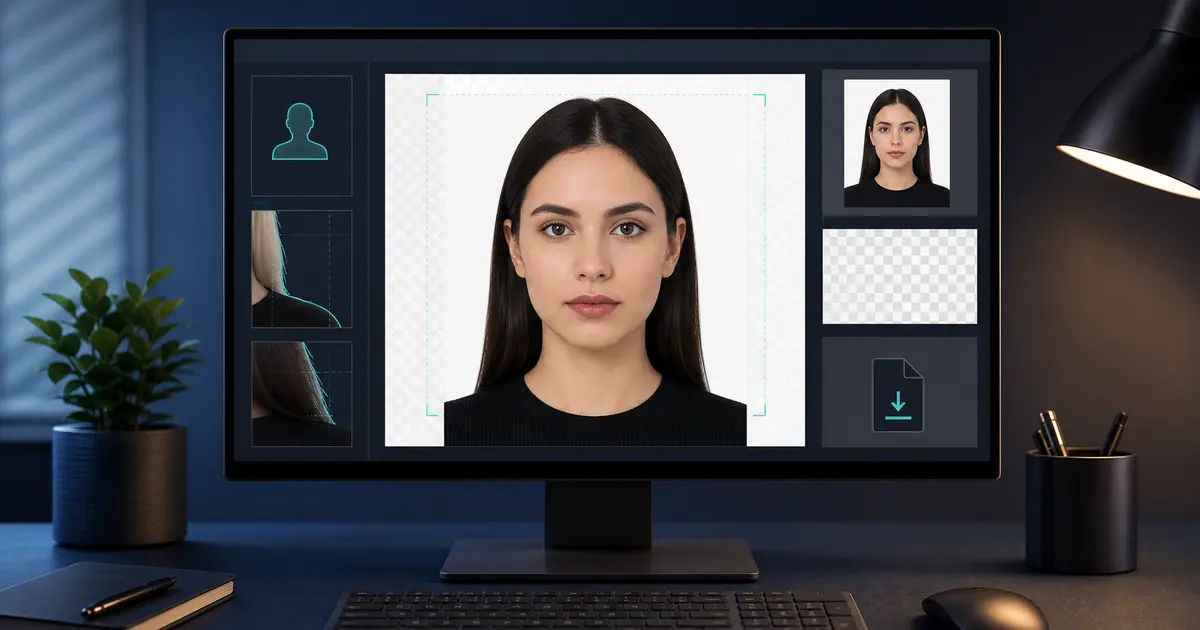
If your photo was not taken against the correct background, you have two options: retake the photo or use software to remove and replace the background. Passlens includes built-in background removal that can run on your device by default, with an optional enhanced path for heavier processing when you choose it.
Using Passlens Background Removal
- Upload or take your photo in Passlens
- The app will automatically detect the background
- Select Remove Background to strip the existing background
- Choose your target background color based on your country's requirements
- Fine-tune the edges if needed using the built-in refinement tools
- The new solid-color background is applied seamlessly
By default, standard editing keeps the photo in your browser session. If you choose the optional enhanced path for heavier work, the image is used only for that request and then cleared.
Best Results for Background Removal
For the cleanest background removal, take your original photo with good contrast between yourself and the background. Avoid wearing clothing that is the same color as the background you are standing in front of. A busy background is workable, but high contrast between subject and background produces the sharpest edges.
Avoiding Shadows on the Background
Even if you have the correct background color, shadows can cause rejection. Immigration authorities require a uniform, evenly-lit background with no visible shadows from the subject's head, body, or surrounding objects.
Common Causes of Background Shadows
- Standing too close to the wall: Keep at least 30-50 cm (1-2 feet) between yourself and the background surface
- Single light source: A single overhead light or window creates directional shadows. Use two lights or face a large window
- Flash directed at the subject: Camera flash can cast a hard shadow directly behind you on the wall
- Overhead lighting only: Ceiling lights without any fill light create shadows below the chin and nose that fall on the background
How to Eliminate Shadows
- Stand at least 50 cm (2 feet) away from the background wall or sheet
- Use diffused, even lighting from in front of you. Natural daylight from a large window works well
- If using artificial light, position lights at a 45-degree angle on either side of the camera
- Avoid using your camera's built-in flash. If flash is necessary, use a bounce flash aimed at the ceiling
- If shadows persist, use Passlens background removal to replace the background with a clean, uniform color
Special Background Cases
Blue and Red Backgrounds
A few countries use colored backgrounds for specific document types. Indonesia is the most notable example, using red backgrounds for people born in odd-numbered years and blue backgrounds for even-numbered years on their national identity card (KTP). Chinese work permits and some visa types may also require a blue or red background.
Baby and Child Photos
Background requirements apply equally to photos of babies and young children. This can be challenging since infants are typically photographed lying down. If photographing a baby on a white sheet, ensure the fabric is smooth, wrinkle-free, and evenly lit to create a uniform appearance. Wrinkled fabric reads as an uneven background and may be rejected.
Religious and Medical Head Coverings
Head coverings worn for religious or medical reasons are generally permitted in passport photos in most countries, but the background requirements remain the same. Ensure the head covering does not cast a shadow on the background, and that there is sufficient contrast between the covering and the background color.
Background Checklist Before Submitting
Before submitting your passport photo, run through this final checklist to ensure your background meets requirements.
- Verify the correct background color for your specific country and document type
- Check for uniform color across the entire background area, with no gradients or hotspots
- Ensure there are no shadows from the head, shoulders, or any other objects
- Confirm no objects, people, or patterns are visible in the background
- Verify the background has no visible texture (fabric weave, wall paint patterns)
- Check that the background is the correct shade: not too bright, not too dark
- For digital submissions, zoom in to check for artifacts along the edges of background removal