Automatic Background Removal for Passport Photos: AI Cleanup, White Backgrounds, and What to Check (2026)
Learn how automatic background removal works for passport and ID photos, when AI background cleanup helps, what can still go wrong, and how to verify the final image before you submit or print it. Includes white, grey, and blue-background workflow questions that often show up before export.
What People Usually Mean by “Automatic Background Removal”
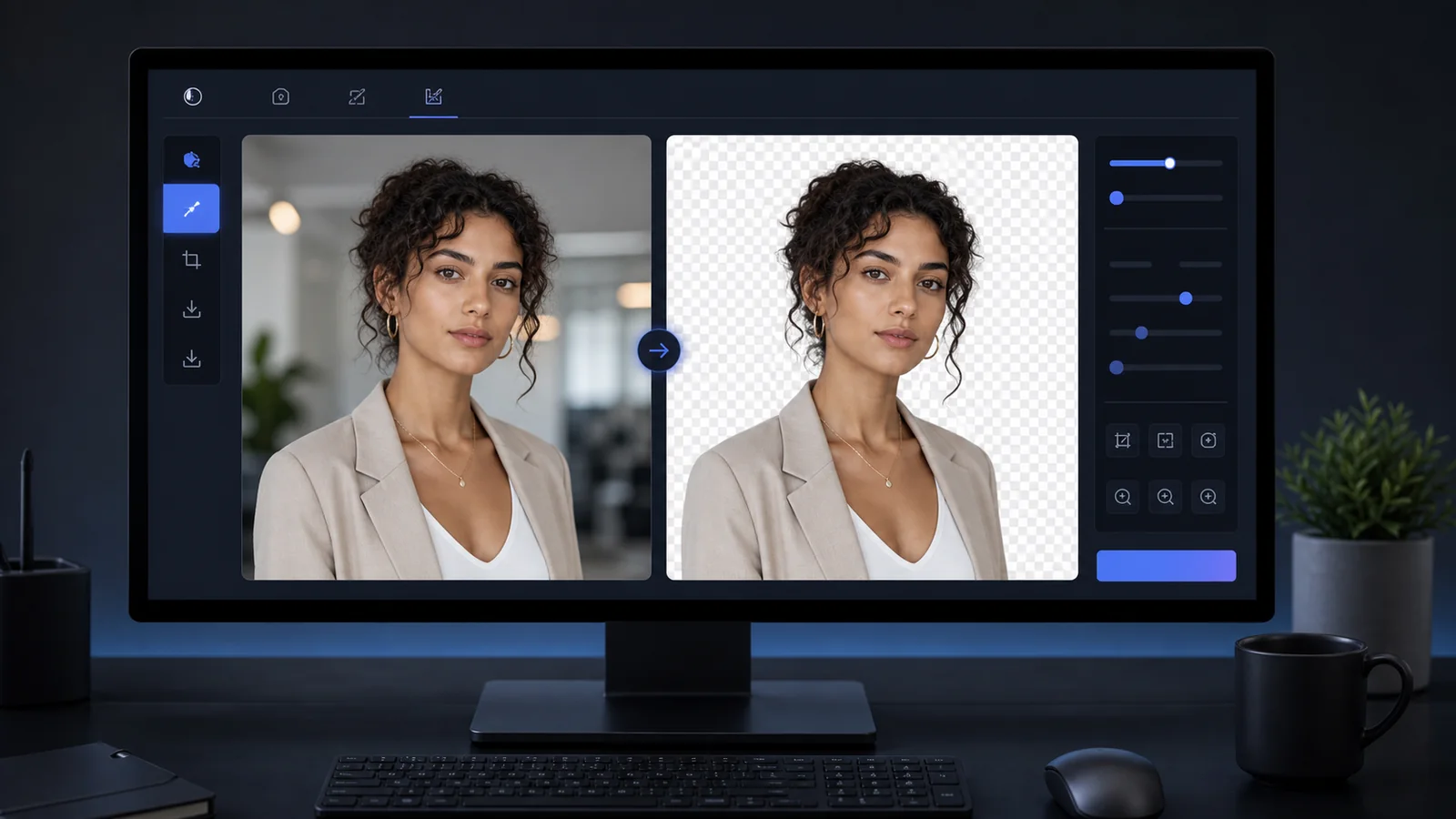
Most people searching for automatic background removal, AI background removal, or AI based background removal want a simple outcome: take an ordinary portrait, remove the messy background automatically, and replace it with the right plain color for a passport, visa, or ID photo.
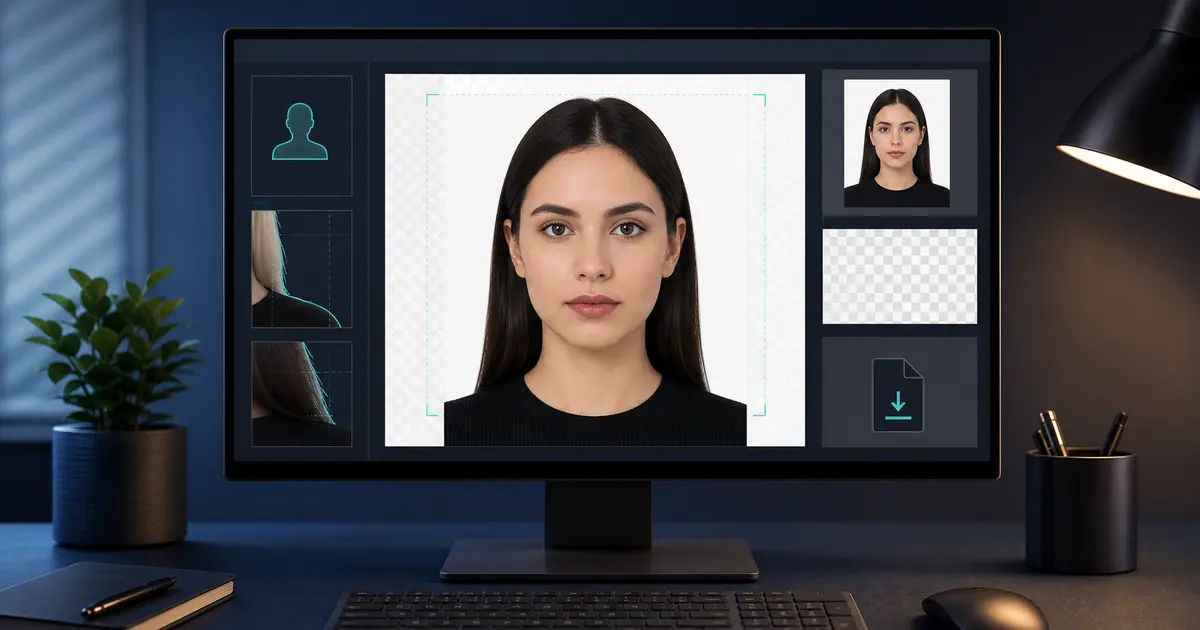
That is exactly where Passlens fits. The goal is not to make a generic transparent cutout for design work. The goal is to create a document photo with the correct background and final size so the export is usable for official workflows.
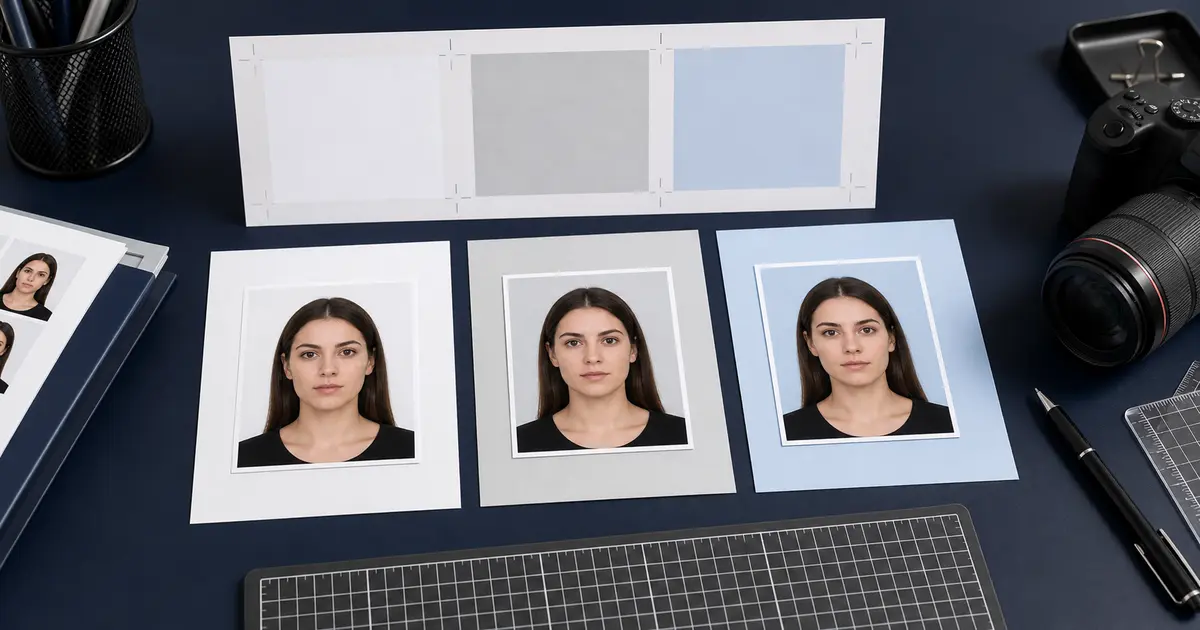
In practice, the same questions often show up as background for passport photo, passport photo background remover, or even blue background passport photo. They all lead to the same operational question: can the cleanup step produce a background that still matches the real document rule instead of just looking tidier on screen?
If you want the direct cleanup route, use the background removal hub. If the main concern is keeping the normal workflow in the browser until you choose otherwise, use the passport photo maker without uploading by default. If you still need the full edit route, go to the passport photo maker. If the image is already made and only needs a final review before export, use the passport photo checker.
What AI Background Removal Actually Does
- Detects the subject and separates it from the original scene
- Keeps the portrait while removing walls, furniture, and visual clutter
- Lets you place the subject onto a clean white, grey, or blue background depending on the document rules
- Reduces the need to retake a photo just because the original wall or room was not suitable
For passport and ID photos, the important question is not whether the AI removes the background at all. It is whether the final result still looks clean, natural, and compliant around the hairline, ears, shoulders, and clothing edges.
When Automatic Background Removal Helps Most
| Situation | Why AI removal helps | What to verify afterward |
|---|---|---|
| Busy room background | Removes shelves, doors, or furniture quickly | Check edge quality around hair and shoulders |
| Wrong wall color | Lets you switch to white, light grey, or light blue | Confirm the replacement color matches the target country |
| Uneven shadows on wall | Removes the original wall entirely | Make sure the subject is still evenly lit |
| Fast phone photo at home | Avoids needing a full studio setup for every attempt | Check the final crop and face framing, not only the background |
What to Check After AI Background Cleanup
- Hair edges: thin hair and flyaways can look cut off if the matte is too aggressive
- Ears and jawline: these should stay natural and not blend into the replacement background
- Collars and shoulders: dark clothing can create halos if the mask is rough
- Background color: some countries accept white, while others require light grey or light blue
- Overall realism: the result should still look like a real passport or ID photo, not a design cutout
Background removal is only one part of compliance
A clean background alone is not enough. You still need the right document size, head positioning, and print or digital export settings.