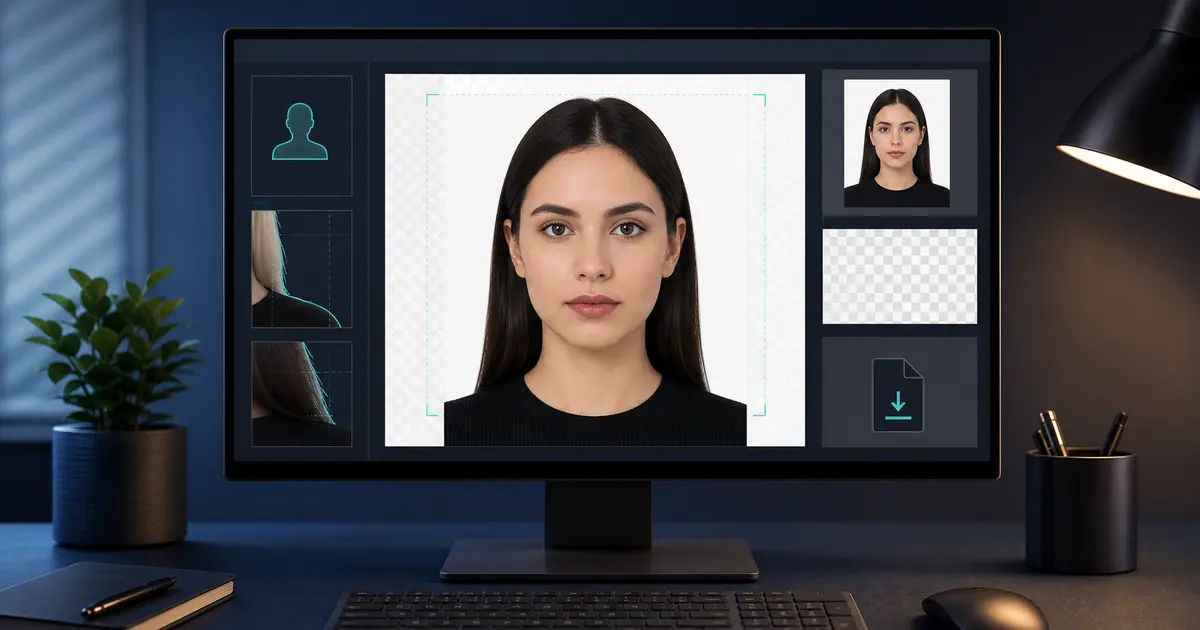
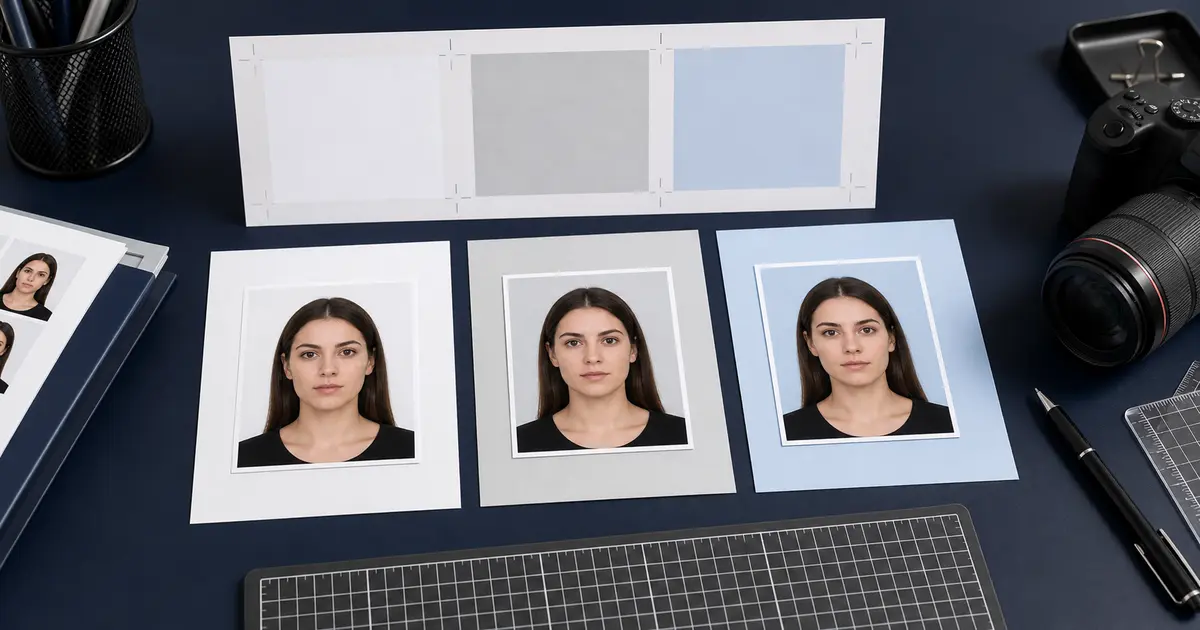
Passport Photo Background Remover Online (2026): White, Grey, Blue, and Clear Cleanup Choices
Use this guide when you need a passport photo background remover online and want to understand white-background tools, background cleanup, edge checks, local editing, and optional enhanced processing before export.
What people mean by a passport photo background remover online
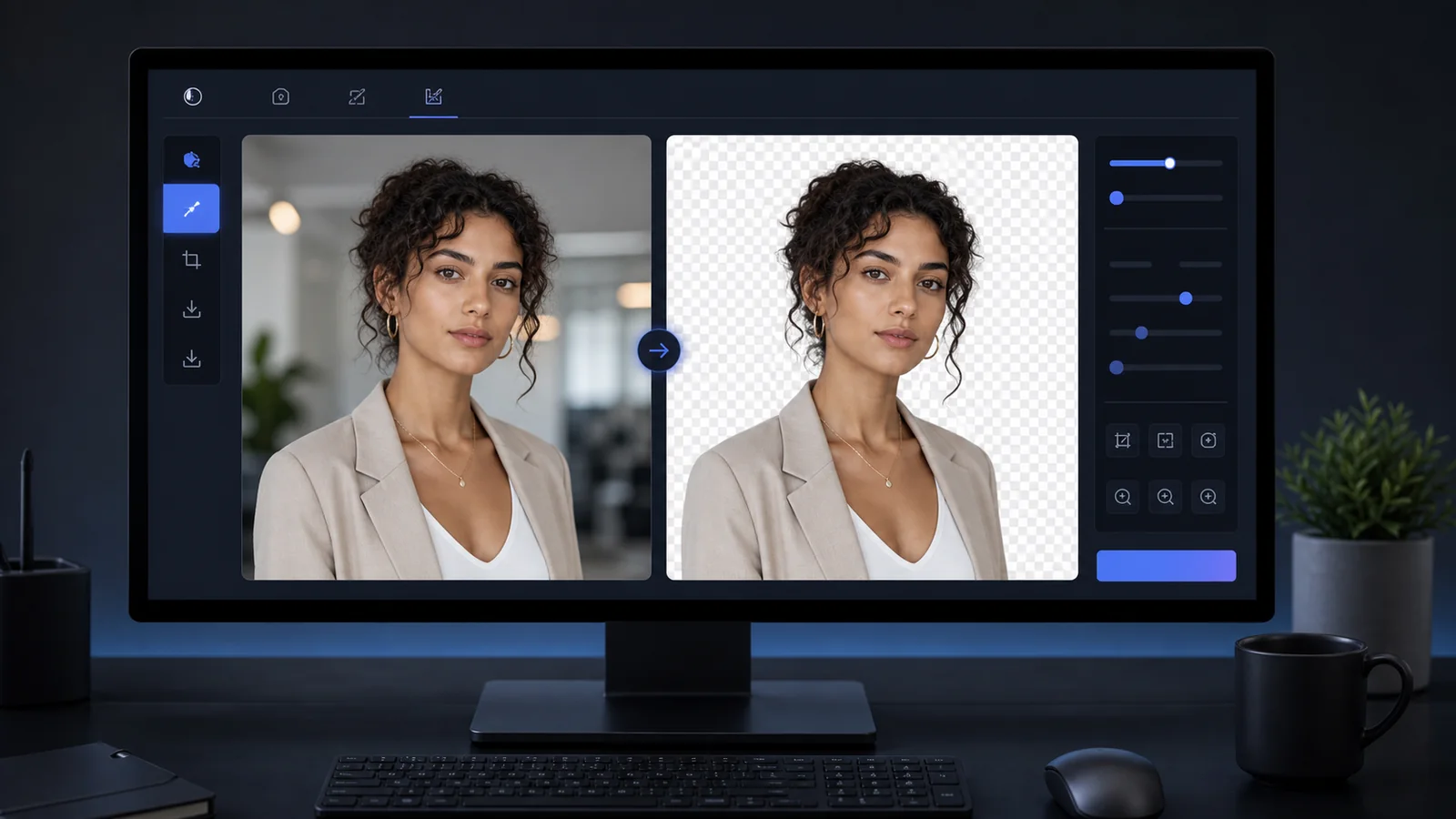
A search for passport photo background remover online is usually not about creative editing. The user has a portrait with a room, wall, shadow, chair, or office behind them, and they need a clean document-photo background without losing the shape of the face, hair, neck, and shoulders.
That makes background removal a workflow question, not just an erase button. The final photo still has to match the real document route. A U.S. passport-style photo may need a white or off-white result. A French identity-photo route should not be forced into a pure white assumption. Other documents use light grey, cream, blue, or mission-specific wording. The safe order is preset first, cleanup second, export last.
Use this page with the background removal hub, the automatic background removal guide, and the background color guide. Those pages keep the cleanup tool tied to the rule that matters.
When an online background remover helps
| Starting photo problem | What cleanup can fix | What still needs review |
|---|---|---|
| Busy room or office background | Replace the scene with a plain document-style backdrop | Hair edges, shoulders, and shadows around the subject |
| Wrong wall color | Swap the color after the subject is separated | Whether the chosen preset actually allows that color |
| Uneven sheet or wrinkled cloth | Remove texture and folds from the backdrop | Whether the face lighting still looks natural |
| Light shadow behind the head | Reduce the background shadow by replacing the backdrop | Whether face shadows or glare remain visible |
The best result usually starts before the software runs. A plain wall, even lighting, and contrast between clothing and background make the cutout easier to inspect. A background remover can rescue many normal home photos, but it should not hide a blurred face, tilted posture, or poor framing.
What to check after AI background removal
- Hair outline: look for a hard helmet edge, missing strands, or a pale halo.
- Jaw and ears: make sure the cutout did not shave off facial detail.
- Neck and collar: check that the shirt and shoulders remain believable.
- Color spill: remove obvious green, blue, or wall-color tint left from the original background.
- Backdrop choice: confirm the final color matches the selected passport, visa, or ID preset.
Do not approve the first preview blindly
Zoom in before export. Most background-removal mistakes are small at page size and obvious at close range.
Local background removal vs optional enhanced cleanup
A browser-first passport photo tool should make image handling clear. Local editing is the right default for ordinary crop, sizing, review, and export work. Heavier cleanup can still be offered through an optional enhanced path, but that choice should be visible at the moment the user asks for it.
That distinction matters for sensitive document photos. A user who wants a passport photo maker without uploading by default is asking where the image goes. A user who chooses heavier upload-based cleanup is making a different decision. Both paths can be legitimate; the problem is hiding the difference.
If you want the direct cleanup route, use the background removal hub. If the main concern is keeping the normal workflow in the browser until you choose otherwise, use the passport photo maker without uploading by default. If you still need the full edit route, go to the passport photo maker. If the image is already made and only needs a final review before export, use the passport photo checker.
A safer background-removal workflow
- Choose the exact passport, visa, ID, or licence preset before changing the background.
- Run background cleanup only if the original backdrop does not meet the rule.
- Pick the final background color from the document requirement, not from a generic white-background habit.
- Zoom in around hair, ears, jaw, neck, collar, and shoulders.
- Export only after the crop, background, and output route all match the next step.