

Brighten a dark photo before export.
Lift an underexposed image enough to inspect it, reuse it, or continue into the Passlens editor. The adjustment happens in your browser.
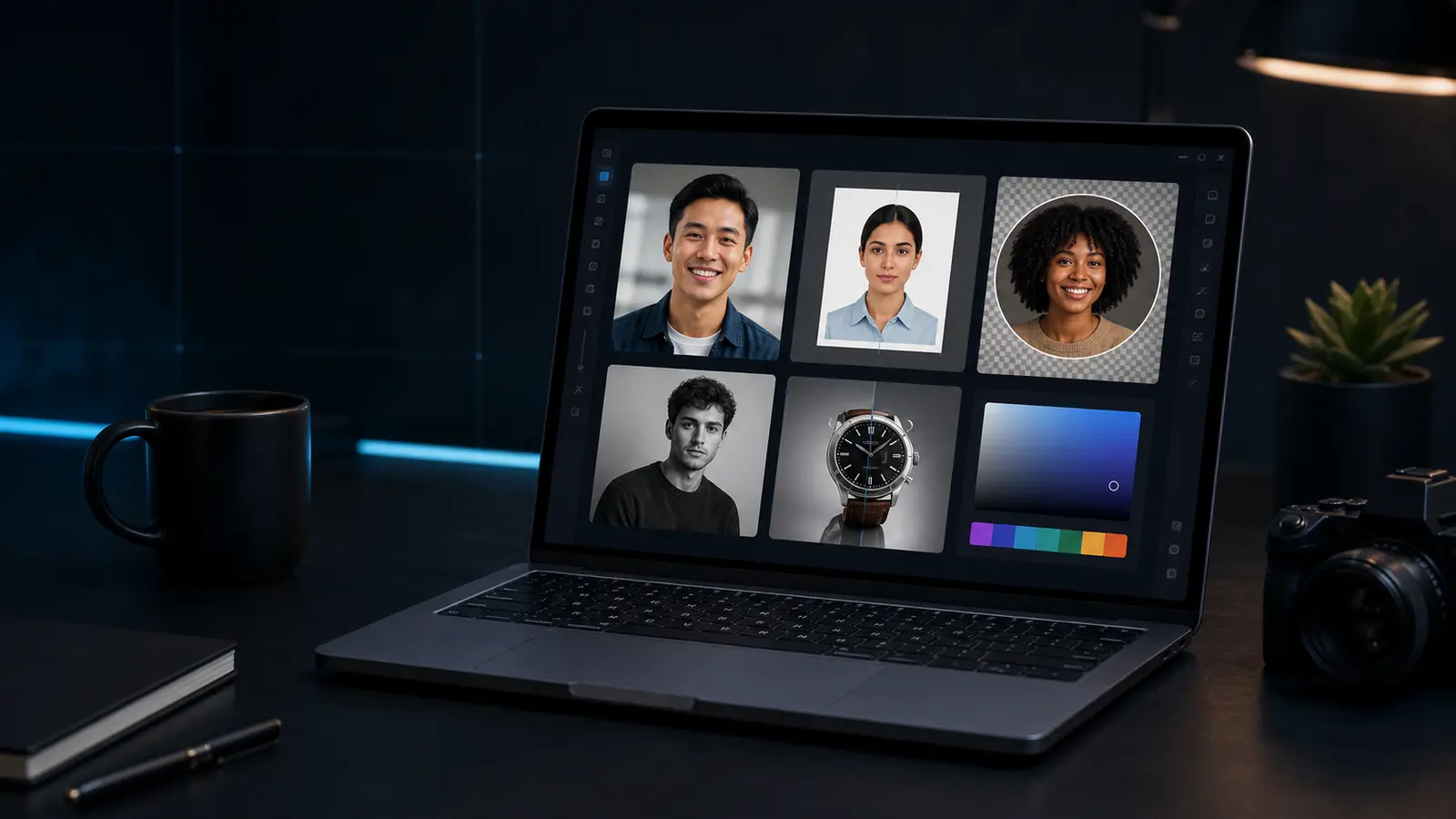
Photo brightener
Brighten a dark image with a local adjustment.
Works best on underexposed images that still have visible detail.
Need this for a passport, visa, or ID photo?
Open the Passlens ID photo editorWhen the photo brightener helps.
This page is for quick browser work. For passport, visa, or ID-photo rules, use the Passlens editor after the quick fix so size, background, and print output can be checked.
Use it when
- A portrait, scan, or product photo is too dark but still has detail.
- You need a quick brightness pass before cropping or background removal.
- A preview image is hard to judge on a dark screen.
Before you download
- Do not brighten so much that skin, paper, or highlights turn flat white.
- If the image is blurry or noisy, retaking it will usually work better.
- Use document presets after brightening when the final file needs official sizing.
Before using it for a passport or ID photo
The photo brightener can clean up a source image, but it is not the final compliance check. Use it first when the photo needs a quick fix, then open a document preset to confirm the outer size, head position, background, file format, and print scale.
What happens to the file
The preview runs in this browser tab and the normal download is a PNG. Keep the original nearby if the edit makes skin tone, edges, or text look worse. For official photos, export only after the document editor shows the crop you actually need.