

Darken a washed-out photo.
Reduce brightness on an overexposed portrait, scan, or product image before you download it or continue into the Passlens editor.
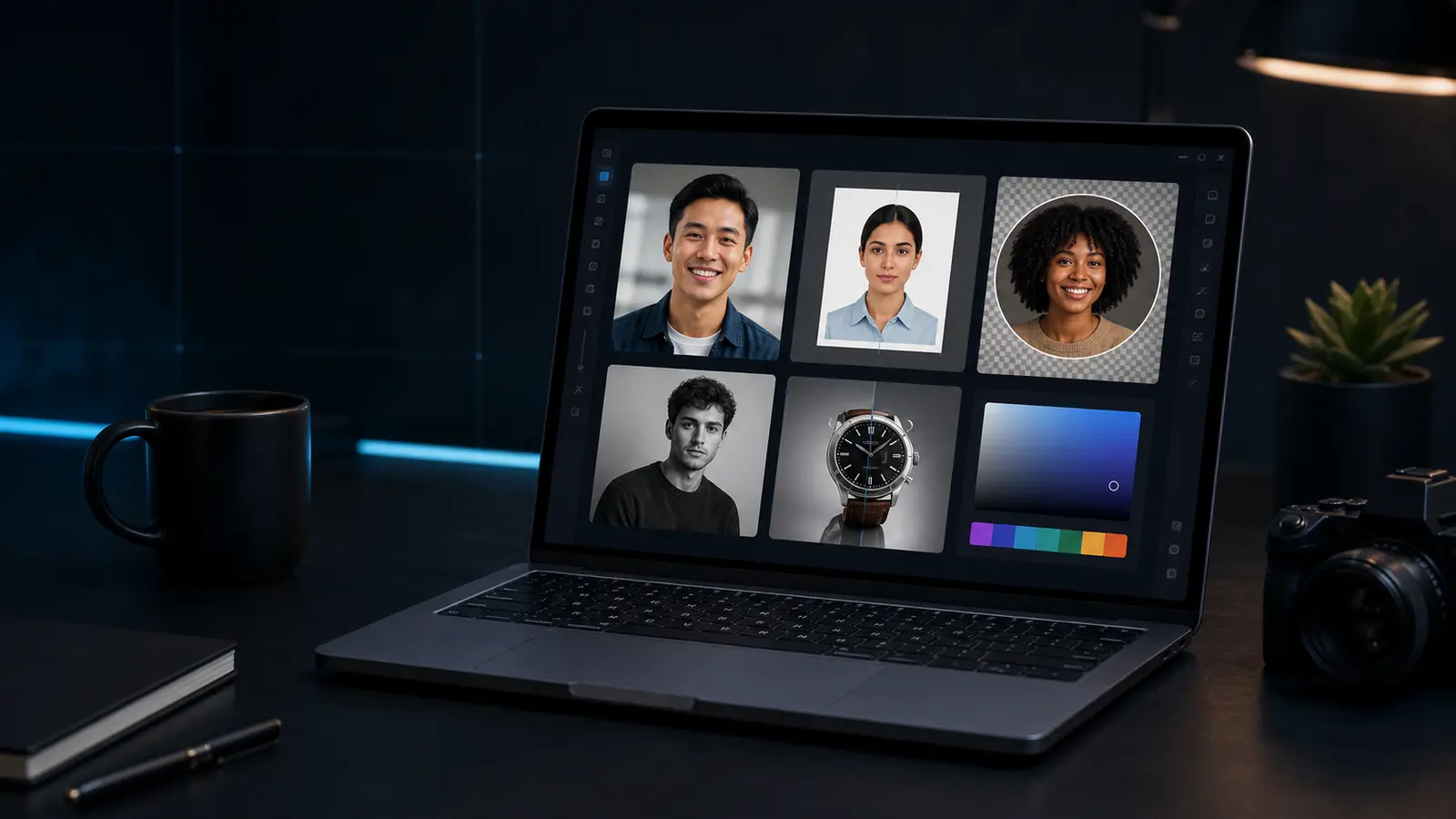
Photo darkener
Darken an over-bright image while keeping the workflow local.
Useful when a scan or phone photo is washed out.
Need this for a passport, visa, or ID photo?
Open the Passlens ID photo editorWhen the darken photo helps.
This page is for quick browser work. For passport, visa, or ID-photo rules, use the Passlens editor after the quick fix so size, background, and print output can be checked.
Use it when
- A phone photo looks washed out after flash or window light.
- A scan lost contrast and needs a darker preview.
- You want a quick tone adjustment before export.
Before you download
- Avoid pushing the slider so far that hair, clothing, or document edges block up.
- If the background turns grey, retake the photo with softer light.
- Use official photo presets after the tone fix when compliance matters.
Before using it for a passport or ID photo
The darken photo can clean up a source image, but it is not the final compliance check. Use it first when the photo needs a quick fix, then open a document preset to confirm the outer size, head position, background, file format, and print scale.
What happens to the file
The preview runs in this browser tab and the normal download is a PNG. Keep the original nearby if the edit makes skin tone, edges, or text look worse. For official photos, export only after the document editor shows the crop you actually need.