Online Passport Renewal Photo Upload Guide (2026): State Department File Rules, Rejected Photos, and App Workflow
Prepare a U.S. passport renewal photo upload for the State Department tool. Covers JPG, PNG, HEIC, and HEIF files, 54 KB to 10 MB checks, rejected uploads, Invalid photo errors, AI-edit warnings, and when a print route is still safer.

What online passport renewal photo upload means
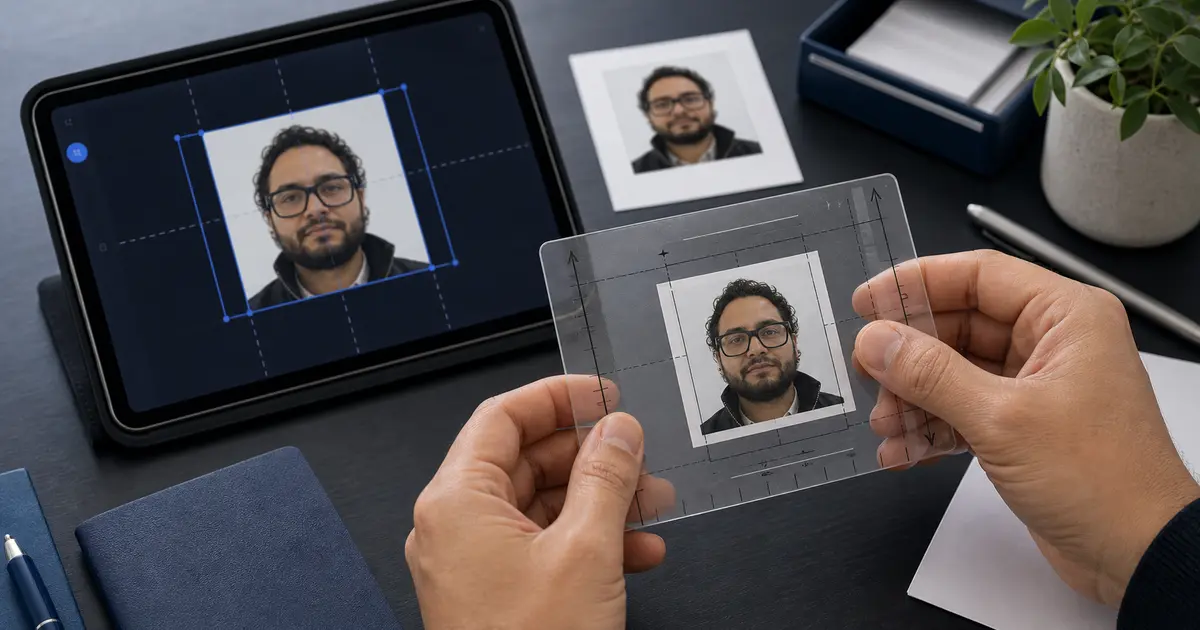
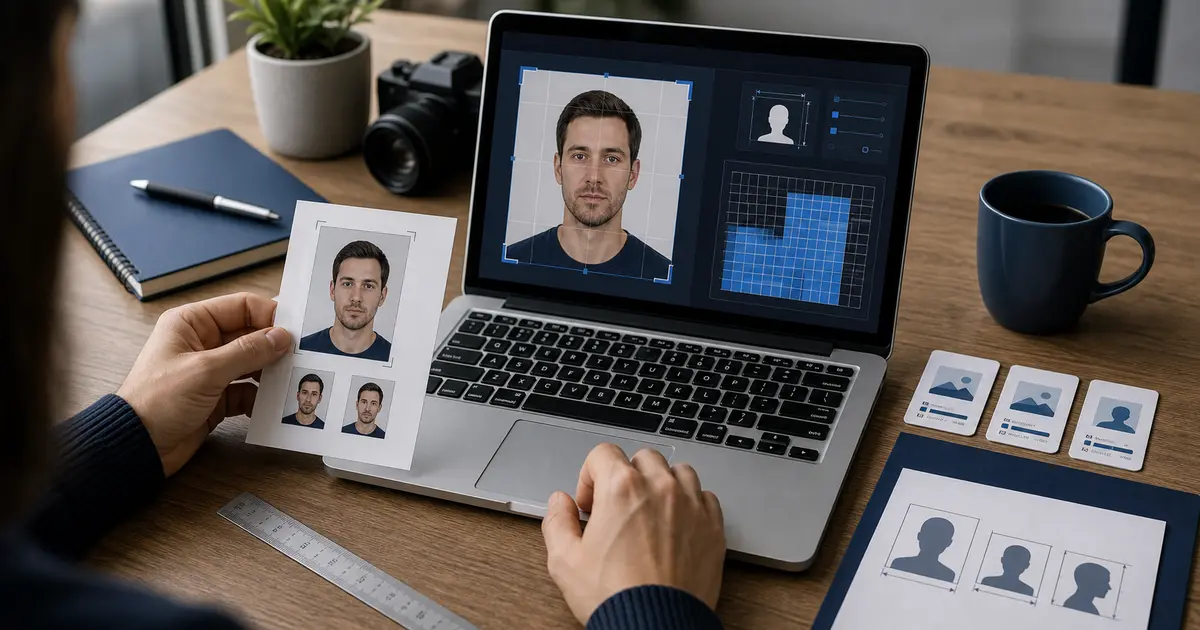
An online passport renewal photo is a digital file first, not a passport print converted after the fact. For a U.S. passport renewal photo upload, the renewal portal checks a digital image before anyone sees paper. That means the file type, file size, orientation, crop, background, and source quality all matter.
The U.S. online renewal route is a useful model because the State Department publishes separate guidance for uploading a digital photo. It accepts a direct digital image, but warns users not to scan a printed photo or take a picture of a printed photo. That is the split many people miss: the classic 2x2 inch passport rule still matters, but the online route adds upload rules on top.
State Department photo upload tool file rules
The official U.S. online renewal photo page says the upload must be a JPG, PNG, HEIC, or HEIF file, and the file size must sit between 54 KB and 10 MB. A file below the lower limit can fail just like an oversized file. A file that came through a messaging app can also pick up compression or metadata changes you did not ask for.
Do not treat the State Department photo upload tool as a full approval. It checks basic requirements during the application, then an employee reviews your photo again after the application is received. If something is wrong, you may be asked for another photo.
Do not edit your face
For this route, do not use filters, retouching, or AI tools to change how you look. If the background, lighting, or face position is wrong, retake before you re-upload instead of trying to fix your appearance digitally.
Quick checks before you upload
| Check | What to verify |
|---|---|
| Source image | Use a fresh digital portrait, not a scan or phone photo of a print |
| Background | Plain white or off-white for U.S. passport-style routes |
| Face and crop | Front-facing, neutral expression, eyes visible, enough headroom for the passport crop |
| File type | For U.S. online renewal, use JPG, PNG, HEIC, or HEIF |
| File size | Keep the file between 54 KB and 10 MB instead of over-compressing blindly |
| Orientation | Open the exported file and confirm it is upright before upload |
Do not solve a digital upload by photographing a print
A print can be the right answer for mail-in renewal, but it is usually the wrong starting point for online renewal. Photographing a print adds blur, glare, skew, and compression before the portal even reviews the image.
Why online renewal photo uploads fail
Searches for online passport renewal photo rejected usually come from the same moment: the portal accepts the file selection, then blocks the user with a vague photo problem. The fix is rarely one single setting. Work from the original photo, then test the file rules, crop, background, and editing history in that order.
- The crop is technically square but visually wrong. The head is too high, too low, too small, or too large.
- The file was saved from a messaging app. Chat apps often resize, recompress, or strip useful image data.
- The image is a scan of a print. Official online-renewal guidance can reject that workflow even if the scan looks sharp to you.
- The background was fixed too aggressively. A clean background is useful, but edits that change your appearance create risk.
- The file is tiny because it was crushed. Passing a KB limit is not the same as passing a quality check.
If the portal gives a vague error, do not change everything at once. First re-export from the original image. Then check file type and file size. Then check crop and background. If the image is blurry, filtered, scanned, or heavily edited, retake before you re-upload. Guessing usually makes the second upload worse.
| What you see | What to check first |
|---|---|
| Invalid photo | Start with the original digital image. Check that it is recent, upright, sharp, unfiltered, and not scanned from a print. |
| Photo failed | Treat it as a basic-requirements failure, not a final human decision. Recheck file type, file size, crop, background, and lighting before trying again. |
| The file exceeds the maximum allowed size | The official range tops out at 10 MB for U.S. online renewal. Export again from the original file instead of repeatedly saving the same compressed copy. |
| Continue button stays disabled | Try a direct JPG, PNG, HEIC, or HEIF file from the device. If the browser still will not continue, reopen the application step and upload a fresh export. |
| The photo looks rotated after upload | Some files depend on orientation metadata. Open the export before upload; if it displays sideways, make a clean upright copy first. |
If your phone saved the original as HEIC, do not panic-convert it through a random compressor. U.S. online renewal accepts HEIC and HEIF, but a clean HEIC to JPEG export can still be useful when another portal or print workflow needs JPEG. Keep one untouched original so you can make a new export without stacking compression artifacts.
How to prepare the upload in Passlens
- Start with a recent digital photo taken in good light.
- Open the U.S. passport photo preset if you are preparing a U.S. online renewal upload.
- Use crop review to confirm head position before export.
- Export a digital file for upload, then open that file locally to confirm the final crop, file type, and orientation.
- If the same application route later asks for a print, create a separate print sheet from the same approved crop instead of scaling the upload file manually.
For related troubleshooting, use the U.S. passport photo guide, the passport photo validator guide, the passport photo upload checker, the file-size checker guide, the passport photo pixels guide, the free 2x2 workflow, the passport photo app guide, the HEIC to JPEG guide, and the digital passport photo requirements guide.
If your real route is a U.S. passport renewal workflow, start with the US passport photo maker. If the blocker is the square upload target, use the 600x600 passport photo maker. If the file still needs to be rebuilt inside the normal editor flow, go back to the passport photo maker. If you want the default workflow to stay in the browser until you choose otherwise, use the passport photo maker without uploading by default. If you only need a final review before you submit, use the passport photo checker.
When a print backup still makes sense
Online renewal does not mean every passport workflow is digital now. Some people still need a mail-in renewal, a first passport application, a child passport application, an urgent appointment, or a route where the authority asks for a physical photo. In those cases, a measured print sheet is still the right output.
Keep the two outputs separate in your head. The upload file has portal rules. The print has physical size rules. They can come from the same source crop, but they should not be treated as the same final product.
DS-82 renewal photo vs DS-11 application photo
Online renewal is not the same route as every passport application. A DS-82-style adult renewal path can be digital or mail-based depending on eligibility and current State Department handling. A DS-11 first-time, child, lost, stolen, or damaged passport route is different and can require an in-person step. Match the photo to the route instead of relying on the word "renewal."
| Route | Photo output to prepare | Common mistake |
|---|---|---|
| Eligible online renewal | Digital upload from a direct digital image | Scanning a 2x2 print or photographing a print |
| Mail renewal | Fresh 2x2 print with the renewal package | Reusing the photo from the old passport |
| DS-11 first-time or replacement route | Fresh 2x2 print unless the acceptance site captures the photo | Preparing a digital-only upload file for a paper appointment |
| Minor passport application | Fresh child passport photo plus parent/guardian paperwork | Waiting until the appointment to solve the child photo |
Frequently asked questions
Can I scan a printed passport photo for online renewal?
For the U.S. online renewal route, the State Department tells users not to scan a printed photo or take a picture of a printed photo. Use a direct digital image instead, then export the upload file from that original.
Is an online renewal photo the same as a 2x2 passport print?
The composition is related, but the output is different. A 2x2 print is measured on paper. An online-renewal file has digital upload checks such as accepted file type, file size, orientation, and source quality.
What should I do if my online passport renewal photo is rejected?
Go back to the original digital photo. Check that the export is JPG, PNG, HEIC, or HEIF, between 54 KB and 10 MB, upright, recent, unfiltered, and not scanned from a print. If the crop or background still looks doubtful, retake before you re-upload.