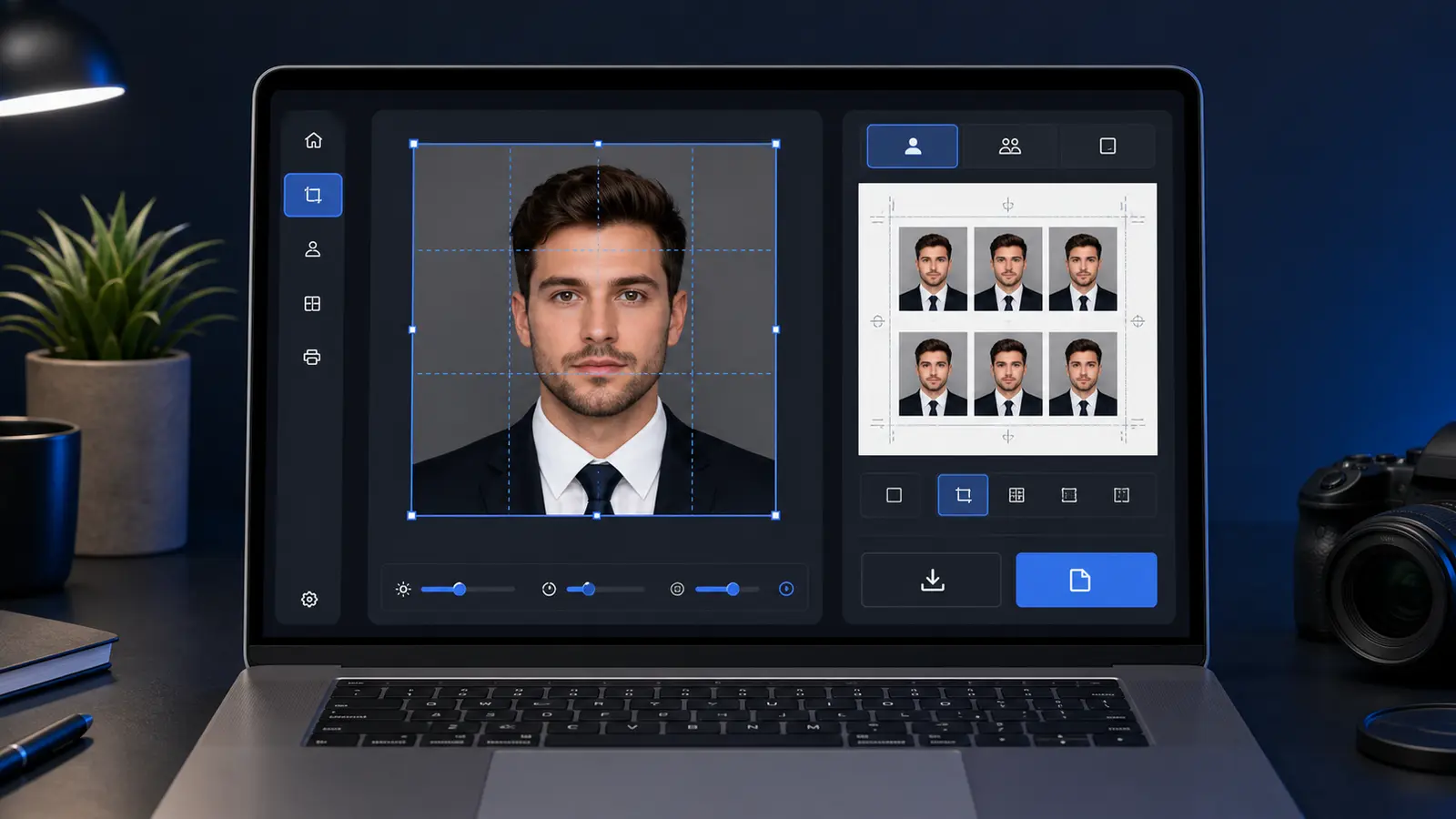
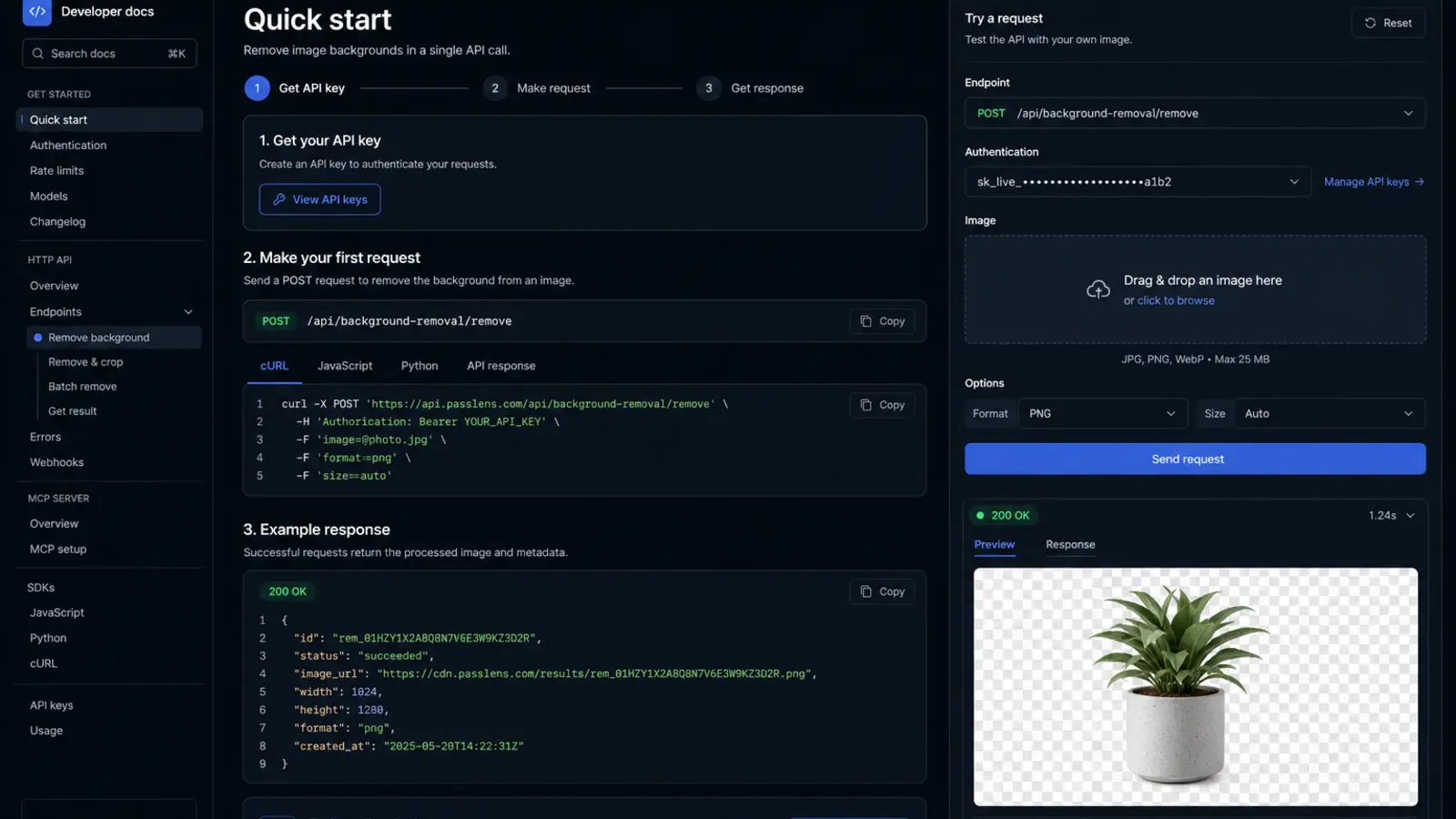
Digital Passport Photo Requirements 2026: Online Passport Photo Size, JPEG, File Limits, and Upload Rules by Country
Digital passport photo requirements for online applications, including online passport photo size, upload pixel targets, JPEG and modern image formats, file limits, and export settings that hold up on government portals by country.
The Shift to Online Passport Applications
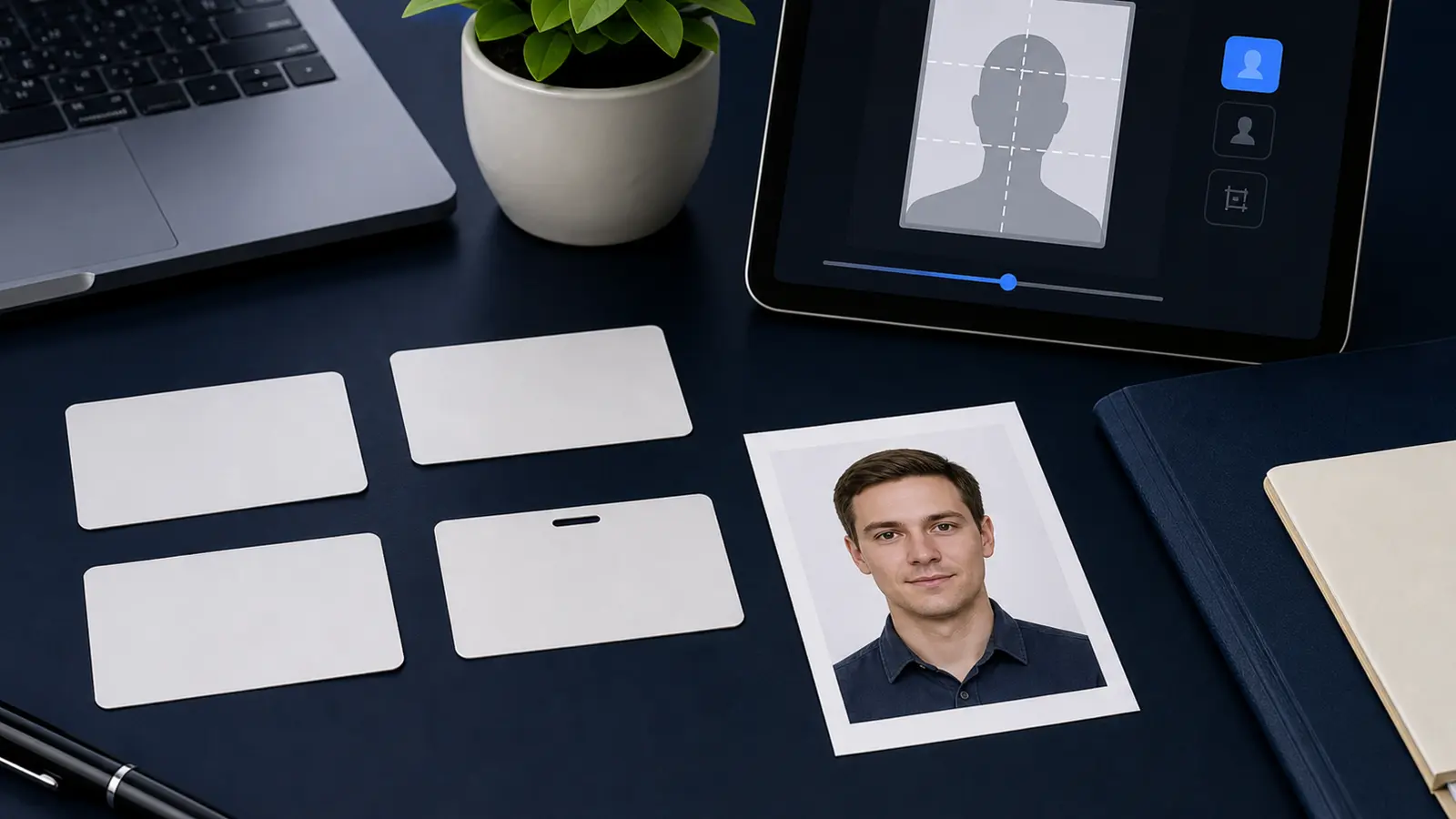
More countries than ever accept passport applications online, and that means digital passport photos are increasingly important. Instead of printing photos and attaching them to paper forms, applicants now upload digital images directly to government portals.
When people search for digital passport photo requirements, online passport photo size, or passport photo upload requirements, they are usually trying to solve that portal-specific layer: correct pixels, JPEG format, file-size limits, and an image that still respects the underlying passport-photo rules.
That is also what most digital passport photo guidelines searches are asking for in plain language. Not theory. Just the upload rules that matter in practice: the right crop, the right pixel range, the right file format, and a file that the portal will actually accept.
If you want the shorter tool-facing entry, open the digital passport photo page first. This guide goes deeper on country examples, upload failures, and file-size decisions once the basic digital-photo route is clear.
The same problem often shows up as passport photo upload rejected. In practice that usually means one of four things: the file is too large, the dimensions are wrong, the compression is too aggressive, or the crop still does not look compliant after export. That is why upload guidance and checker content belong close together instead of being scattered across unrelated pages.
Instead of thinking only in millimeters and paper types, you need to think in pixels, file-size caps, accepted formats, and compression quality. This guide covers the digital layer that sits on top of the normal passport-photo rules so you can prepare a file that survives real government upload checks.
If your real route is a U.S. passport or renewal upload, start with the US passport photo maker. If the blocker is the square digital target or pixel export, use the 600x600 passport photo maker. If you only need a final review before you submit, use the passport photo checker.
Which Countries Accept Online Photo Uploads
The list of countries accepting digital passport photo uploads continues to grow. Here are the major countries and the types of applications that accept online photo submissions.
| Country | Online Availability | Application Types |
|---|---|---|
| United States | Yes | Online passport renewal, DS-160 visa applications, DV Lottery |
| United Kingdom | Yes | All passport applications via GOV.UK |
| Canada | Yes | Online passport renewal, some new applications |
| Australia | Yes | Passport renewals, some new applications |
| New Zealand | Yes | All passport applications |
| India | Yes | Passport Seva online portal |
| Ireland | Yes | Passport Online service for renewals and first-time adult applicants |
| Germany | Partial | Digital-only authority/provider workflow for the main passport and ID routes |
| France | Partial | Pre-application online, photo required at appointment |
| Japan | Yes | Online passport renewal launched recently |
| South Korea | Yes | Online passport application portal |
| Singapore | Yes | Online application for citizens and residents |
Additionally, many countries accept online visa applications with digital photo uploads, even if their passport applications are still paper-based. This includes Schengen visa applications through VFS Global, US visa applications, and e-visa systems used by countries like Turkey, India, and Australia.
If you already know the exact destination workflow, pair this page with the matching authority guide. The U.S. passport photo guide covers the square 2x2 rules that dominate American uploads, while the South Korea passport photo guide explains the stricter white-background and ear-visibility checks that still matter after you meet the portal file limits.
For European 35x45 mm workflows, the Italy passport photo guide and the Germany passport photo guide show how the same physical format can still map to very different submission systems once digital upload enters the process.
Digital Passport Photo Requirements: The Fast Answer
If you searched for digital passport photo requirements or passport photo upload requirements, the practical checklist is simple: use the correct aspect ratio for the country, export in JPEG, stay within the portal's file-size limit, and make sure the face and background still meet the normal passport-photo rules.
In other words, an online passport photo is not a different kind of photo. It is the same compliant passport photo delivered as the right digital file. That is why the exact online passport photo size, upload dimensions, and compression settings matter just as much as the visual appearance.
Best workflow
Pick the exact country preset first, then export specifically for digital upload instead of resizing a random image manually at the end.
Online passport photo upload checklist
- Choose the country first: the upload size is only correct when it matches the actual document route.
- Keep the correct aspect ratio: square for the U.S. 2x2 route, portrait for most 35x45 mm workflows.
- Export in the safest accepted format: usually JPEG unless the portal explicitly allows PNG, HEIC, or another format.
- Stay inside the file-size cap: strict portals such as the U.S. often fail oversized files before the photo is even reviewed.
- Check the biometric crop after export: the face, background, and head size still matter after compression.
- Keep a print-ready copy too: some routes mix digital upload with later in-person checks or printed backups.
That checklist is what most people really mean by online passport photo size. They are not only asking for pixels. They are asking for the full combination of shape, file type, compression, and biometric crop that a government portal will accept on the first try.
If you already have a file and the portal is rejecting it, jump next to the passport photo upload checker guide and the passport photo file size checker guide. Those pages are built for the rescue stage, when the crop is done but the export still is not behaving.
For the U.S. renewal route, use the online passport renewal photo upload guide. It focuses on the digital-file step, including the warning against scanning a printed photo for online renewal.
Digital Photo Specifications by Country
Each country has its own requirements for digital passport photos. The key specifications are pixel dimensions (width and height in pixels), file format (almost always JPEG), file size (minimum and maximum in kilobytes or megabytes), and color depth (virtually always 24-bit sRGB color).
| Country | Min Pixels | Max Pixels | File Size | Format |
|---|---|---|---|---|
| United States | 600 x 600 | 1200 x 1200 | 10 KB - 240 KB | JPEG |
| United Kingdom | 600 x 750 | 4500 x 5625 | Up to 10 MB | JPEG |
| Canada | 420 x 540 | 4800 x 6000 | 10 KB - 5 MB | JPEG |
| Australia | 600 x 800 | 4500 x 6000 | 80 KB - 5 MB | JPEG |
| New Zealand | 900 x 1200 | 4500 x 6000 | 500 KB - 10 MB | JPEG |
| India | 350 x 350 | 1000 x 1000 | 10 KB - 300 KB | JPEG |
| Ireland | 715 x 951 | Not specified | 15 KB - 9 MB | JPEG |
| South Korea | 413 x 531 | 1500 x 2000 | Up to 700 KB | JPEG |
| Singapore | 400 x 514 | Portal-preferred upload size | Up to 8 MB | jpg, jpeg, heic, heif, png |
| US DV Lottery | 600 x 600 | 600 x 600 | Under 240 KB | JPEG |
Strictest Limit: United States
The US has the most restrictive file size limit at just 240 KB maximum. This requires careful JPEG compression. A standard smartphone photo at 600x600 pixels will typically be 200-500 KB at high quality, so you may need to reduce quality to about 80-85% to fit under the limit while maintaining acceptable visual quality. Passlens handles this optimization automatically.
That is also why country-specific guidance still matters. A U.S. upload can be perfectly square yet still fail if the face does not match the 2x2 passport photo size framing. A South Korean upload can meet the file limit but still fail if both ears are not visible or the background is not truly white.
The same principle applies to countries like Singapore, where ICA publishes a preferred upload size of 400 x 514 pixels and accepts multiple file formats, and Italy, where applicants often start from a traditional fototessera mindset even when the surrounding workflow has become more digital.
Use the country page that matches the portal you are actually facing: U.S. passport photo, Ireland Passport Online, South Korea, Singapore, and Italy all share the same basic goal but differ in the export details that matter at submission time.
Understanding JPEG Requirements
JPEG (Joint Photographic Experts Group) is the universal format for digital passport photos. Every online application portal accepts JPEG, and most require it exclusively. Understanding how JPEG works helps you optimize your photos for acceptance.
JPEG Quality Levels
JPEG uses lossy compression, meaning some image data is discarded to reduce file size. The quality setting (typically 1-100) controls how much data is kept. Higher quality means larger files with more detail; lower quality means smaller files with potential visible artifacts.
| Quality Level | File Size (600x600) | Visual Quality | Passport Photo Use |
|---|---|---|---|
| 95-100% | 300-500 KB | Virtually lossless | May exceed file size limits for US |
| 85-94% | 150-300 KB | Excellent, no visible artifacts | Ideal for most countries |
| 75-84% | 80-150 KB | Good, very minor artifacts | Acceptable, fits strict limits |
| 60-74% | 40-80 KB | Visible artifacts around edges | May be rejected for quality |
| Below 60% | Under 40 KB | Obvious compression artifacts | Will likely be rejected |
Color Space: sRGB
All digital passport photos must be in the sRGB color space. This is the standard color space for web and screen display. Photos from most smartphones are already in sRGB. If you use a professional camera that shoots in Adobe RGB or ProPhoto RGB, you must convert to sRGB before exporting. Incorrect color spaces can cause colors to appear muted or shifted when viewed by the passport office.
EXIF Data
JPEG files contain EXIF metadata that records camera settings, GPS location, date taken, and other information. For privacy reasons, it is good practice to strip EXIF data from passport photos before uploading. Passlens removes EXIF data automatically during export. Some countries' online portals also strip EXIF data on their end, but you should not rely on this.
Pixel Dimensions Explained
Pixel dimensions specify the width and height of the image in individual picture elements (pixels). For a digital passport photo, the pixel dimensions must match the aspect ratio of the physical photo size and fall within the allowed range.
Aspect Ratios
- 1:1 (square): US passport (2x2 inches). Digital version is 600x600 pixels.
- 3:4 (portrait): Most European and Asian passports (35x45mm). Digital version is typically 600x750 or 413x531 pixels.
- 5:7 (portrait): Canadian passport (50x70mm). Digital version follows same proportions.
The aspect ratio of your digital photo must match the aspect ratio of the physical photo for your country. A US passport photo must be square (1:1). A UK passport photo must be 3:4 (width to height). Uploading a photo with the wrong aspect ratio will be rejected, even if the pixel dimensions are within the allowed range.
Resolution and Source Quality
Your source photo must be large enough to produce the required pixel dimensions without upscaling. Enlarging a small image (upscaling) adds blurry pixels and can cause rejection for poor quality. A modern smartphone rear camera captures images at 12-108 megapixels, which is more than sufficient for any passport photo requirement. The key is to crop from a large source image down to the required dimensions, never scale a small image up.
Common Upload Errors and How to Fix Them
Online application portals validate uploaded photos automatically. Here are the most common error messages and how to resolve them.
| Error Message | Cause | Fix |
|---|---|---|
| File size too large | JPEG exceeds maximum KB/MB limit | Reduce JPEG quality or pixel dimensions in Passlens |
| File size too small | Image is extremely compressed or too few pixels | Use a higher resolution source photo |
| Wrong dimensions | Pixel width/height outside allowed range | Export at the correct pixel dimensions for your country |
| Wrong aspect ratio | Image is not the correct shape (square vs portrait) | Recrop to the correct aspect ratio |
| Wrong file format | Uploaded PNG, HEIC, or other non-JPEG format | Export as JPEG from Passlens or convert the file |
| Face not detected | Photo too dark, too small, or face obstructed | Ensure the face is clearly visible, well-lit, and properly framed |
| Background not acceptable | Non-compliant background color or shadows | Use Passlens background removal and set the correct color |
| Multiple faces detected | Other people visible in the background | Crop tighter or use background removal to isolate the subject |
Preview Before Uploading
Many online portals show a preview of your uploaded photo with acceptance criteria. Take time to review this preview carefully. If the portal shows warning icons or red indicators next to any criteria, fix the issue before proceeding. It is much faster to resubmit a photo than to have your entire application returned.
Exporting from Passlens for Digital Use
Passlens is designed to make digital passport photo export simple and error-free. After editing your photo, the export process handles all technical requirements automatically based on your selected country.
- Complete your photo editing in Passlens (crop, background, positioning)
- Tap Export and select the Digital Photo option
- Passlens will automatically set the correct pixel dimensions for your country
- The JPEG quality is optimized to produce the best image within the file size limit
- EXIF metadata is stripped for privacy
- The color space is set to sRGB
- Save the file to your device
- Upload directly to your country's application portal
Passlens is local by default. If you choose the optional enhanced path for heavier processing, the image is used only for that request and then cleared. This keeps sensitive identity-photo workflows under your control.
Tips for a Successful Online Submission
Follow these best practices to ensure your digital passport photo is accepted on the first upload attempt.
- Use your phone's rear camera for the highest resolution source image. Front-facing cameras typically have lower resolution.
- Take the photo in good lighting. Well-lit photos compress more efficiently (smaller file size at the same quality) because there is less digital noise.
- Verify pixel dimensions after export. Right-click the file and check Properties (Windows) or Get Info (Mac) to confirm width and height in pixels.
- Check file size. Ensure the JPEG file is within your country's limits. The US limit of 240 KB is particularly strict.
- Test on the portal. Many government portals have a photo validation tool that checks your image before you submit the full application. Use it.
- Keep a backup. Save the original high-resolution photo and the exported version separately. If you need to resubmit, you can re-export without retaking the photo.
- Do not edit the exported file. Opening and re-saving a JPEG in another program can add compression artifacts. Use the file directly from Passlens.
- Clear your browser cache if the upload fails unexpectedly. Cached data can sometimes interfere with form submissions.
Multiple Applications
If you need digital photos for multiple applications (e.g., passport renewal and a visa), be aware that each may have different specifications. A US passport photo (square, 600x600) is different from a Schengen visa photo (portrait, 413x531). Create and export separate files for each application using the appropriate country preset in Passlens.
Frequently Asked Questions
Do online passport applications always require JPEG files?
No, but JPEG is still the safest default. Many passport portals explicitly ask for JPEG, while some newer systems also accept formats like PNG or HEIC. The important rule is to check the exact portal guidance and then export a file that matches both the accepted format and the required pixel range.
Is 400 x 514 a universal digital passport photo size?
No. 400 × 514 pixels is a country-specific example, not a universal upload rule. It is useful precisely because it shows why people should not assume that every online passport workflow uses the same pixel target. Some authorities want square U.S.-style uploads, while others prefer portrait exports that map back to 35 × 45 mm biometric photos.
What online passport photo size should I use?
Use the size required by the exact country and portal, not a generic “online passport photo” default. The U.S. usually needs a square 600 x 600 to 1200 x 1200 JPEG, the UK uses portrait uploads tied back to 35 x 45 mm rules, Singapore prefers 400 x 514, and Ireland layers Passport Online checks on top of the normal 35 x 45 mm biometric crop.
Can I reuse the same digital file for different passport or visa applications?
Only if the crop, aspect ratio, and file limits actually match. A compliant file for one passport portal may still fail a visa or another country’s system because the pixel range, shape, or file-size ceiling is different. The safest workflow is to keep the same source portrait but export a separate file for each application route.
What is the safest way to prepare a digital passport photo?
Pick the document preset first, make sure the face and background meet the underlying passport-photo rules, and then export specifically for digital upload. That order is safer than resizing a random image at the end, because it keeps the biometric crop and the portal-specific file settings aligned.