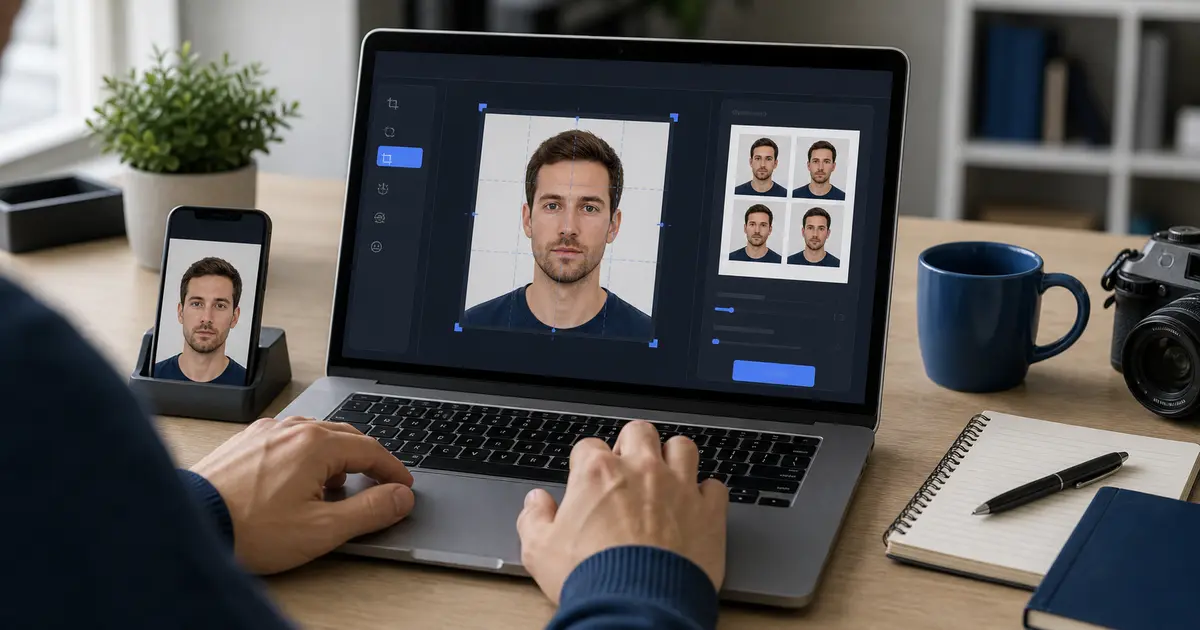
Digital Passport Photo vs Printed Passport Photo: Which One You Need and What Changes at Export (2026)
Understand when you need a digital passport photo, when a printed passport photo is still required, and when the safest move is to prepare both from the same compliant crop.

What people usually mean by digital passport photo
Most people searching for a digital passport photo are not asking whether the image lives on a computer. They are asking whether the file is ready for a real upload: correct shape, correct pixel range, acceptable file size, and still visually compliant once the portal compresses the preview.
That is different from a printed passport photo. Print workflows care about physical dimensions, sheet layout, and whether the printer preserves the crop at 100 percent scale. Digital workflows care more about file format, pixel dimensions, and how the image behaves after export.
The mistake is treating those as two unrelated photos. In most cases they should come from the same compliant crop. The output changes. The underlying passport or visa photo should not.
The fast answer: digital, printed, or both
| Need | What matters most | Best next step |
|---|---|---|
| Digital upload only | Pixels, JPEG quality, file-size limit, and portal-safe crop | Digital passport photo requirements guide |
| Printed copies only | Exact mm or inch size, 100 percent print scale, and paper output | Print guide |
| Both digital and printed | One compliant edit, then two output paths from the same source image | Use the Passlens editor |
If you are unsure, prepare both. That is usually the safest move because a lot of real workflows mix portal uploads with printed backups, in-person checks, or later reprints.
When you need a digital passport photo
Digital files matter whenever the submission path runs through an online portal. That includes standard passport renewals in countries with online systems, visa applications, and a lot of supporting identity workflows that now ask for an uploaded biometric-style image instead of paper prints.
This is where people get tripped up. A photo can look perfectly fine on a phone screen and still fail because the portal wants a narrower file-size range, a different aspect ratio, or a stronger JPEG export than the user expected. That is why digital-passport-photo intent sits so close to the upload-checker and validator cluster.
- U.S. routes: digital renewals, DS-160 visa submissions, and other square upload workflows.
- UK and Ireland routes: online systems where the crop still follows the biometric rules even though the final handoff is digital.
- Visa workflows: especially portals that enforce file limits before a human reviewer sees the photo.
If the real problem is “my file keeps getting rejected,” jump straight to the passport photo upload checker guide and the passport photo file size checker guide. Those pages cover the rescue stage after the crop is already done.
When a printed passport photo is still the right output
Printed photos still matter more than many people expect. First-time applications, in-person appointments, some minor and emergency routes, and many retailer or embassy workflows still want physical copies even when the rest of the process feels modern.
This is also why people waste money at kiosks. They solve the print step first, then discover the photo itself still needs work. The cleaner sequence is usually the other way around: fix the compliant image first, then print it once the crop, background, and output settings are stable.
- Printed route: use a print-ready export and measure the result after a test print.
- Retail route: treat the shop as the output step, not the source of truth about compliance.
- Home route: keep the 4x6 or A4 template handy so the printer does not silently rescale the sheet.
If that is your lane, the right follow-up pages are the print guide, the 4x6 passport photo template, and the ID photo print guide.
When the safest move is to prepare both outputs
A lot of users do not actually know whether the final checkpoint will ask for digital, print, or both. They only know they need a compliant photo and do not want to redo the work. In that case, the sensible move is to export both from the same session and keep the original edit intact until the application is accepted.
That approach also protects you from the quiet mismatch problem: one version looks acceptable, the other version comes from a slightly different crop, and now the printed copy and the uploaded copy do not really match. There is no reason to create that inconsistency if one editor session can generate both outputs cleanly.
Simple rule
Edit once. Export twice only if the workflow actually needs two formats.
The mistakes that usually cause trouble
- Using a print export as if it were automatically upload-ready.
- Compressing a JPEG until it fits the portal limit but wrecks the face edge or background.
- Printing from a perfectly good digital file through a driver that scales the sheet down.
- Creating separate digital and printed versions from different crops.
- Treating “passport photo” as one universal workflow when the document route still changes the output requirements.
None of those are exotic failures. They are the ordinary reasons people end up doing the same task twice. That is why this page matters more as workflow guidance than as a format glossary.
A practical workflow that avoids the usual rework
- Pick the exact passport, visa, or ID preset first.
- Finish the crop and background review before thinking about export format.
- Decide whether the route needs digital upload, printed copies, or both.
- Export for the real destination instead of resizing or recompressing by hand later.
- Keep the original session until the application or print check is finished.
That is the whole point of the digital-versus-printed comparison. The photo itself should stay consistent. What changes is the last mile.
Frequently asked questions
What is a digital passport photo?
A digital passport photo is the upload-ready file version of a compliant passport or visa photo. It usually needs the right aspect ratio, pixel size, JPEG quality, and file-size fit for the authority or portal you are using.
Do I need a digital file or a printed passport photo?
That depends on the submission route. Online renewals and visa portals usually need a digital upload. In-person applications and many print-counter workflows still need physical copies. Some routes effectively need both, even if they do not say that up front.
Can I use the same photo for digital upload and printing?
Usually yes, if both outputs come from the same compliant crop. The visual photo should stay the same. What changes is the export path: upload-safe file settings for digital, exact physical layout for print.
Is a printed passport photo enough if the portal wants a digital upload?
No. A printed photo does not automatically solve the digital requirements. If the route asks for an uploaded file, you still need the right digital export rather than a photo of the print or a guessed scan.