How to Print Passport Photos at Home: Passport Photo Printer, Paper, DPI, Printer Settings, Templates, and Troubleshooting (2026)
Learn how to print passport photos at home with the right passport photo printer setup, passport photo paper, print settings, sheet size, cut lines, and troubleshooting workflow. Built for users comparing home-print setups, not YMYL application advice.
Why printing passport photos at home is still a strong workflow in 2026
Home printing remains one of the strongest commercial-intent topics in the document-photo space because the user is already close to completion. They are no longer just asking how to crop a photo. They are asking how to get a reliable physical result without wasting paper, ink, or time. That makes how to print passport photos at home different from casual photography advice. The reader is usually choosing between several practical routes: print at home, send the image to a lab, use a pharmacy printer, or hand the task to a booth or retail counter. Good content should help them understand what a home workflow does best and where it becomes more trouble than it is worth.
That search intent also shows up under more product-shaped phrases like passport photo printer, printer for passport photos, and passport photo paper. The buyer is not searching for general photography hardware. They are trying to understand which combination of editor, printer, paper, and print settings will keep a small document portrait sharp and correctly scaled on the final sheet.
The appeal of home printing is obvious. It can be faster, cheaper over time, and much more flexible when the user wants multiple copies or wants to reprint after refining a crop. The risk is equally obvious: the print path introduces more places where a small mistake can creep in. Scale can change. The wrong paper can soften the image. The printer can default to settings that are fine for casual snapshots but weak for a measured document-photo sheet. That is why a good home-print guide must go beyond the usual “press print at 100 percent” advice. It needs to show what really matters in a repeatable workflow.
This also makes the topic a clean non-YMYL expansion for Passlens. The content is about hardware, software, media, and workflow quality. It is not advising on legal rights, immigration, health, or finance. It is helping users compare a home-print route with other output routes and understand what equipment and settings actually change the result. That is commercial, practical, and safely inside the product’s operating domain. If you are still comparing the broader tool chain first, pair this page with the passport photo software guide and the free passport photo maker online guide.
If the photo is not finished yet, do not start with printer settings. First use the passport photo maker, the passport photo checker, or the ID photo print guide. Printing only works once the crop and export are already settled.
- Best for: users who want repeated copies, quick reprints, and more control over the final sheet.
- Main risks: wrong scale, weak paper choice, and printer settings that quietly change quality.
- Main advantage: once the workflow is stable, the user can repeat it easily without paying a per-order premium each time.
Home printing vs photo lab vs retail counter
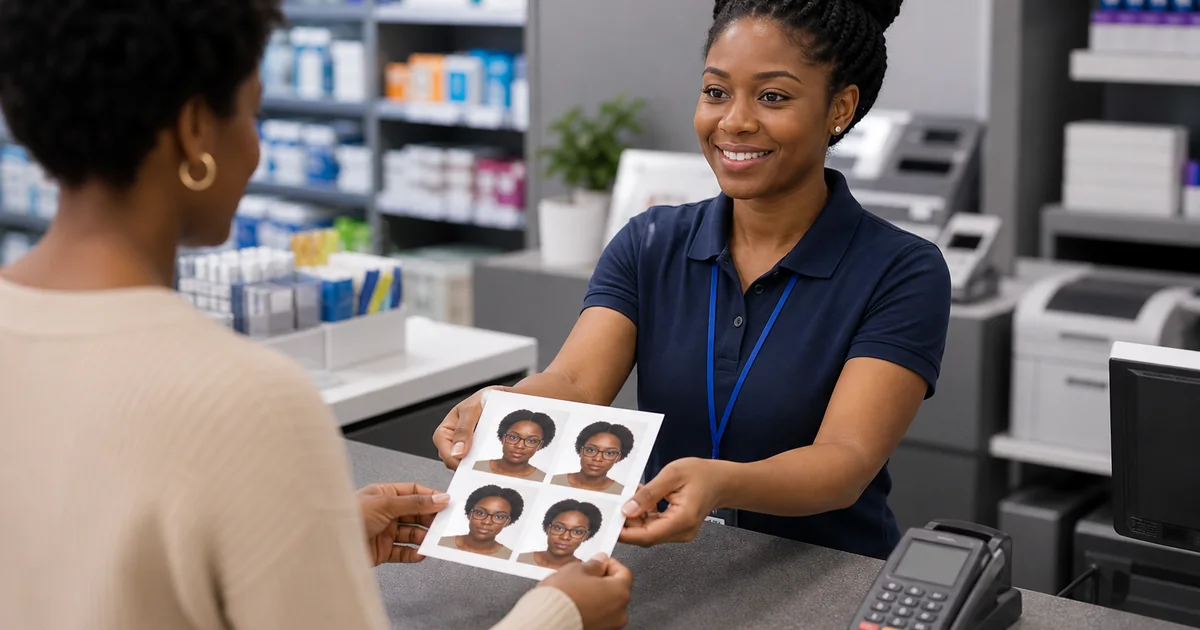
The easiest way to decide whether home printing is worth it is to compare it with the alternatives honestly. A photo lab or pharmacy is often easier when the user already has a final sheet or final image and simply wants paper output with minimal effort. A retail counter or booth can be useful when convenience matters more than control. Home printing wins when the user expects to fine-tune, print multiple copies, or repeat the workflow often enough that control is more valuable than outsourcing the last step.
| Route | Where it wins | Where it weakens |
|---|---|---|
| Home printing | Maximum control, repeatable copies, immediate iteration | Needs the right paper, settings, and some patience |
| Photo lab / pharmacy | Low effort once the final file is ready | Less control over the exact print path and less flexibility for repeated tweaks |
| Retail counter / booth | Fast if you just want an external service | Often limited control over crop, layout, and output options |
This comparison matters because buyers often overpay in the wrong direction. Some users buy too much printer because they only need occasional output. Others keep outsourcing the job even though they are already editing and rechecking the image several times at home. The right answer depends less on abstract printer prestige and more on how often the user expects to repeat the workflow. If the user is already comfortable reviewing the image and wants reliable repeatability, home printing becomes very attractive. If the user wants to touch as few steps as possible, lab printing might still be the better operational decision.
Inkjet vs laser and why printer type still matters
For document photos, printer type still matters because a passport photo is still a photograph. Fine gradients in skin tones, sharp transitions around facial features, and clean backgrounds benefit from printer behavior that handles photo paper and tonal smoothness well. That is why inkjet printers remain the most common choice for home photo workflows. They are not magical, but they are generally better suited to photo media and subtle portrait detail than general office laser printers.
That does not mean every user needs a premium photo printer. It means the printer must be chosen for the actual job. If the user mostly prints office documents and only occasionally prints a 4x6 photo, a broad all-in-one device may still be enough if the media handling is stable and the user understands the settings. If the user expects to print photos regularly, a more photo-oriented inkjet can save time and frustration because the paper path and quality presets are already tuned around photographic output.
| Printer class | Best fit | What to watch |
|---|---|---|
| General inkjet all-in-one | Occasional home passport-photo printing plus normal home use | Check media type, quality mode, and actual-size printing carefully |
| Photo-focused inkjet | Regular photo or document-photo printing | Usually better at photo paper, but still needs correct settings |
| Laser printer | Mostly office documents with rare photo output | Can work, but photo-paper output and tonal smoothness are usually not the main strengths |
Paper and media settings decide more than users expect
Paper is not an afterthought in a passport photo workflow. HP, Epson, and Canon all document the importance of choosing the right paper type and matching the driver setting to the actual sheet in use. That is because the printer changes how it lays down ink depending on the media profile. If the driver thinks the user loaded plain paper while the tray actually contains glossy or luster photo paper, the result can look muddy, oversaturated, weakly dried, or soft around the edges. In a document-photo workflow, those differences matter.
This is also why best-paper discussions are not trivial side notes. A lot of print issues attributed to the image are really media problems. The wrong paper absorbs ink differently, feels too flimsy after cutting, or produces reflections the user did not expect. Strong printing content should help the user understand that printer and paper are part of the same system. Choosing the media without choosing the right media setting is only half a decision.
- Glossy: often gives the strongest detail and familiar photo finish, but fingerprints and reflections show more easily.
- Matte: lower glare and easier handling, but can feel less punchy on some printers.
- Luster / semi-gloss: often a strong balance between clarity and reflection control.
- Weight matters: very thin photo sheets can feel flimsy and less stable after trimming.
DPI, PPI, and why print quality is really about the whole pipeline
Resolution language still confuses many users because software, files, and printers all describe quality differently. Adobe’s printing and image-size documentation is useful here because it makes the relationship between physical size, pixel dimensions, and print resolution explicit. In practice, users do not need to master the whole theory, but they do need to know that a good on-screen image can still print badly if the print path changes scale or if the output assumptions are wrong. That is why the best print workflow is not only about choosing 300 or 600 DPI in isolation. It is about making sure the source image, the software export, the paper setting, and the printer output are all aligned.
For most home users, the practical takeaway is simple: use the software’s print-aware export, choose the correct media setting, and print at actual size. If the tool already exports a high-quality print sheet, the user usually gains more by preserving that path faithfully than by trying to improve it later with random printer scaling or extra image resizing. Good print content therefore needs to discourage unnecessary intervention just as much as it explains useful settings.
| Concept | What it means operationally | Why it matters here |
|---|---|---|
| PPI / pixel dimensions | How much image information the file contains | Sets the ceiling for how clean the printed result can look |
| Printer DPI / quality mode | How the printer renders the file onto paper | Affects edge smoothness, gradients, and clarity |
| Actual-size printing | Whether the physical output stays true to the intended sheet and photo dimensions | Critical for keeping the printed result trustworthy |
4x6 vs A4 or Letter and why layout strategy matters
A lot of home-print frustration comes from treating the paper size as a random convenience choice. In reality, the right sheet size depends on the layout strategy. A 4x6 workflow is excellent when the user wants a small number of repeated copies and minimal waste. A4 or Letter becomes more useful when the user wants more copies, multiple layouts, or a combined print sheet that is easier to cut in batches. Neither option is universally correct. The useful question is which sheet format makes the next physical step easiest for the user.
This is why print-template content and print-guide content reinforce each other. The layout is not only visual. It determines where cut lines sit, how much margin the user has, and how much tolerance there is if the printer clips slightly. Users who understand that relationship make better decisions faster. They stop thinking of printing as send-image-to-printer and start thinking of it as choosing the physical output path that preserves the software work they already did.
- 4x6: compact, efficient, and often ideal for repeated small photo copies.
- A4 / Letter: better when you want larger print sheets or more layout flexibility.
- Template matters: the sheet choice is much easier once the layout tool preserves spacing and cut logic reliably.
If you already know the sheet you want, skip the generic discussion and move straight to the dedicated pages: 4x6 passport photo template, A4 passport photo template, Letter passport photo template, and the passport photo DPI guide for the export-density side of the same workflow.
Why actual-size printing is still the most important setting
If there is one print setting that deserves to be repeated, it is actual-size printing. Users often lose confidence here because printer dialogs are inconsistent, borderless modes behave differently, and different devices phrase the setting differently. But the core rule remains the same: do not let the printer or the print dialog scale the layout casually. Once the software has already laid out the sheet, an extra fit-to-page adjustment usually creates more risk than value. The print path should preserve the layout rather than reinterpret it.
This is why many guides mention 100 percent scale almost like a warning label. It is not because users are careless. It is because printer software often encourages helpful scaling behavior that makes sense for ordinary documents and makes much less sense for measured photo layouts. Strong print content should therefore explain what actual-size printing protects: trust in the physical result. The user should know that when they print the layout, the layout should behave exactly as designed, not be quietly improved by driver assumptions.
Reliable print rule
If the software already generated the sheet, preserve the sheet. Do not ask the printer dialog to redesign it for you.
Color, contrast, and realism matter even in small prints
Small passport photos can trick users into thinking color and tone are minor concerns. They are not. Portrait prints still need facial detail, believable skin tone, and a background that does not look dirty or uneven. Poor media settings, weak paper choices, or over-aggressive printer enhancements can shift the image enough to make the result look less professional even if the overall size and layout are technically fine. This is another reason strong print workflows treat the photo as a system, not just as a file.
A lot of users discover this the hard way when they print a sheet that looked crisp on screen but feels strangely flat or over-processed on paper. Good commercial print content should make this visible ahead of time. The point is not to scare users away from home printing. It is to show them which decisions actually affect realism: media type, quality mode, printer behavior, and whether the software export was preserved faithfully.
Cutting, drying, and handling are part of the print workflow too
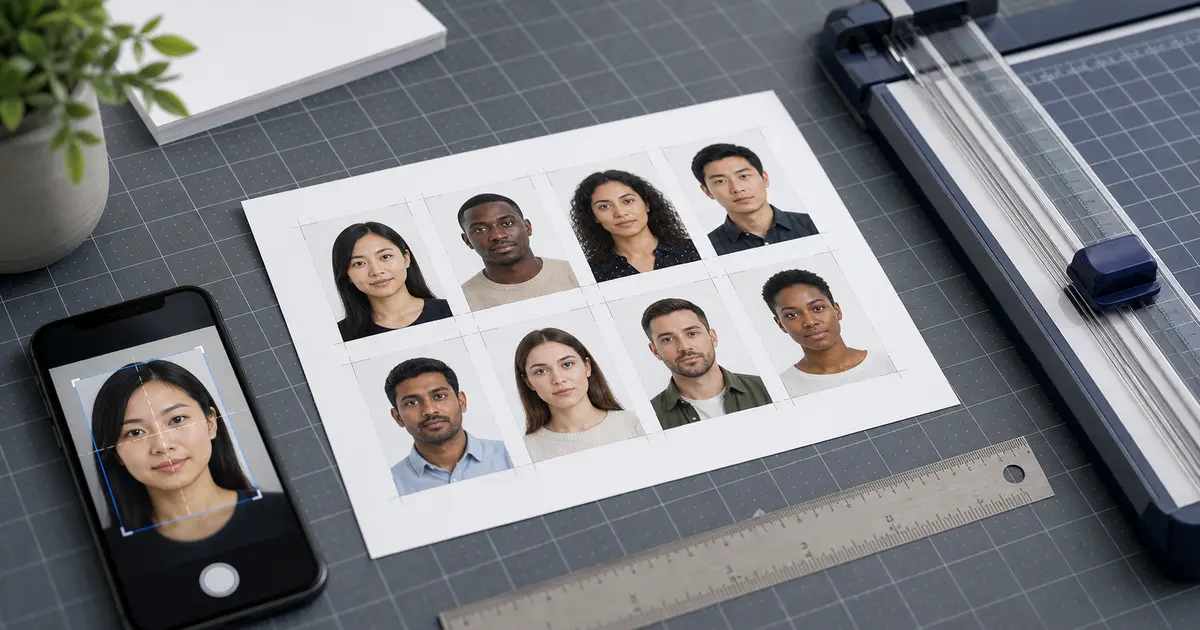
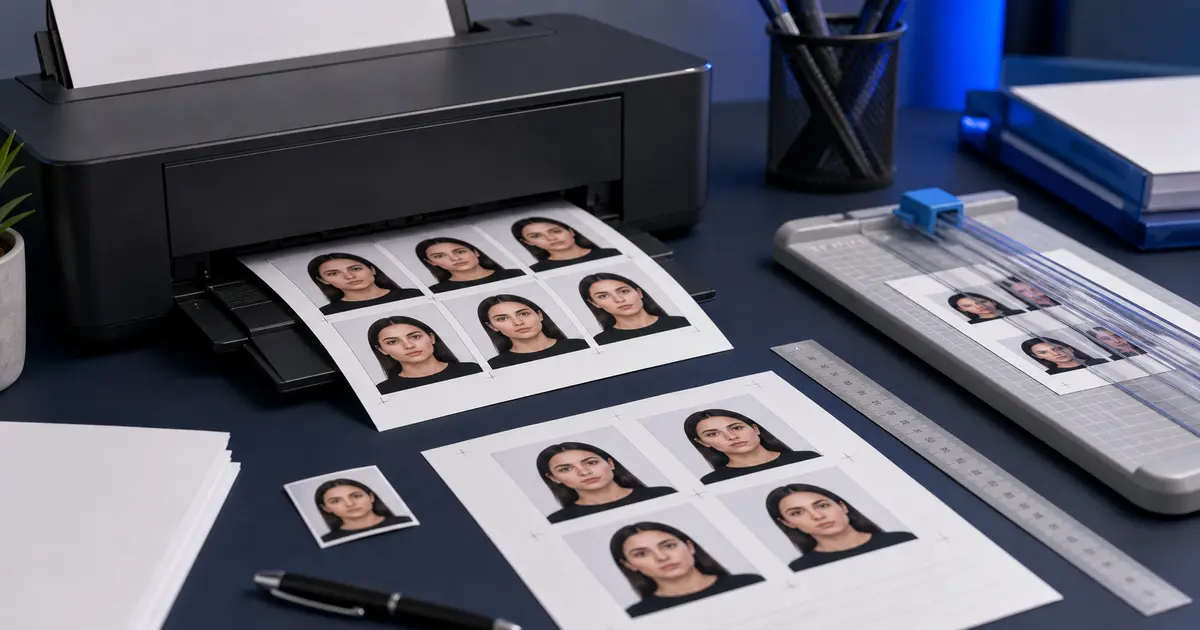
A print is not finished when it leaves the printer. The user still has to let it dry, handle it cleanly, and trim it without damaging the edges. This is where simple physical tools like paper trimmers, straight-edge knives, or careful scissors make a difference. It is also where the software layout pays off. If the sheet includes sensible spacing and cut lines, the physical finishing step becomes much more forgiving. If the layout is cramped or ambiguous, the user is suddenly doing precision work without enough guidance.
This is why the best print workflows keep the finishing step in mind from the moment the export is generated. A good sheet is easy to cut, easy to inspect, and easy to repeat. That is commercially important because repeatability is one of the main reasons users consider home printing at all. If the physical handling is stressful every time, the home route stops being attractive quickly.
Printer drivers, borderless modes, and other settings that quietly sabotage the sheet
One reason home printing feels inconsistent is that printer software tries to be helpful. Drivers may enable borderless behavior, adjust margins, or reinterpret the image area based on the selected media mode. Those features are useful for casual photo printing, but they can be destructive when the user is relying on a layout that was already built carefully in the editor. The more the driver improvises, the less predictable the final sheet becomes.
This is why a serious print guide has to talk about driver behavior as part of the buying decision. A strong printer workflow is not just about the device on the desk. It is also about how manageable the driver and print dialog feel in real use. If the settings are too opaque, the user may keep fighting the software even though the hardware itself is fine. That is a common source of wasted time and one of the best reasons to prefer simple, repeatable print setups over endlessly tweaked ones.
The practical takeaway is not to fear print dialogs. It is to reduce variables. Use the correct media type. Avoid casual scaling. Be cautious with borderless modes unless you are certain how the printer behaves on the chosen paper. If the software already prepared the sheet, the safest printing mindset is preservation, not reinvention.
Repeatability is the real reason some home print setups feel worth it
A home print setup starts feeling valuable when it becomes repeatable. The user knows which paper works, which tray path is safest, which quality mode gives the best result, and how the sheet behaves when trimmed. That repeatability is one of the strongest commercial reasons to learn the workflow properly. Once the setup is stable, the user no longer feels like they are debugging printing every time. They are simply reusing a system that works.
This is also why content about home printing can be commercially useful without becoming hype. The page is not trying to persuade every reader to become a printer enthusiast. It is helping them decide whether they want a repeatable personal workflow or whether they would be better served by a lab. That decision gets easier when the guide treats repeatability as the real value proposition instead of just talking about ink and paper in isolation.
For users who expect to print more than once, repeatability usually matters more than chasing maximum technical perfection. A slightly simpler setup that behaves the same way every time is often better than a supposedly premium setup that keeps surprising the user. That is the kind of practical buying truth that high-intent readers appreciate because it sounds like real operational advice, not marketing copy.
How to troubleshoot a weak passport-photo print without guessing blindly
Good troubleshooting content saves buyers more time than any product slogan. If the output looks soft, check paper type and quality mode before blaming the image. If the layout feels the wrong size, check actual-size printing before changing the file. If the tones look odd, check media settings and enhancement modes before rebuilding the crop. If trimming feels awkward, examine the sheet layout rather than the printer alone. In other words, troubleshooting should proceed in the same order the workflow was built: media, settings, export, then image.
This is why home-print content can justify long-form treatment too. The user problem is deeper than press print. They want a repeatable process, and repeatable processes depend on troubleshooting logic. The more clearly a guide maps the likely failure points, the less likely the user is to waste time redoing the wrong step.
- Soft print: check media type and quality mode first.
- Wrong size: check actual-size printing and printer scaling first.
- Odd color: check enhancement modes, paper type, and printer profile assumptions.
- Hard to cut cleanly: check the sheet layout and spacing before you blame the image itself.
When home printing is truly worth it and when it is not
Home printing is worth it when the user wants control, repeatability, and the ability to refine and reprint without starting from zero. It is not worth it when the user does not want to manage paper, printer settings, or physical finishing and already has a lab or pharmacy route they trust. That sounds obvious, but it is one of the most useful commercial decisions users can make. A lot of wasted time comes from forcing a home-print workflow on people who only needed one simple print, or from sending too many revisions to an outside printer when a stable home workflow would have been faster.
The best content should therefore help the user decide whether home printing is the right operational choice, not just teach them how to do it. That makes the page more commercially useful because it helps the reader spend their time and effort in the right place. Good buying content does not only tell the user how. It also helps them decide whether the route is worth pursuing.
Why this print guide deserves long-form treatment too
A short print guide can remind users to print at 100 percent scale. A real buying guide can do something much more valuable: help them understand why the whole home-print system works or fails. That includes the printer, the paper, the template, the sheet size, the driver behavior, the cutting step, and the troubleshooting order. There is enough real decision-making substance in this topic that a 5000-plus-word page is not padding. It is the amount of space required to answer the buyer’s actual questions properly instead of pretending that home printing is either trivial or impossible.
This is exactly the type of non-YMYL high-CPC content that fits Passlens best. The user is comparing tools and output routes. The product already sits inside that workflow. The content can therefore stay honest, practical, and commercially useful without reaching into risky advice categories. That is the standard a serious content expansion should meet.
How to think about buying or choosing a printer for this exact job
If the user is choosing hardware primarily for passport photo printing, the smartest buying mindset is not “what has the biggest numbers?” It is “what makes this workflow repeatable?” That usually means stable photo-paper handling, easy access to high-quality print modes, and a driver experience that does not keep surprising the user with hidden scaling or media assumptions. A printer that makes the workflow calm is worth more than a printer with a longer spec sheet if the latter keeps creating avoidable friction.
This is another area where content can be genuinely commercial without becoming hype. Users do not need a giant buyer’s guide to every printer ever sold. They need a short list of practical buying questions. Does the printer behave well with the paper size you actually want to use? Does it make photo settings easy to access? Does it preserve layout intent? Does it feel stable enough that you would trust it again next month without relearning the whole setup? These are the kinds of questions that help users buy smarter and reduce the chance that a home-print route becomes frustrating after the initial excitement wears off.
The strongest content stance here is also the most honest one: a decent, predictable photo-capable printer is often enough. The product does not need to flatter the user into buying a premium machine they do not need. It needs to help them identify the minimum reliable hardware and setting combination that makes the home-print route worth choosing. That kind of clarity creates trust much more effectively than exaggerated hardware enthusiasm.
How to build a no-surprises passport-photo print station at home
A repeatable home-print workflow usually depends on a few small choices staying consistent: same paper family, same media setting, same scale rule, and the same output path from the editor. Users often underestimate how helpful this is. They think each print is a fresh decision. In reality, the best home setups feel more like a routine. The user already knows which tray to use, which paper to load, which setting to select, and how the final sheet should look before they touch the cutter. That is what makes home printing feel fast and worth doing.
This also explains why some users who technically own good printers still dislike printing passport photos at home: they never stabilized the routine. They keep changing paper, trying different print dialogs, or second-guessing the export. The workflow never becomes dependable, so every print feels like a fresh experiment. A good guide should help them avoid that by encouraging fewer variables rather than more. Stability is usually the hidden feature that makes a home-print setup pleasant.
- Keep one paper type as the default for document-photo printing instead of rotating randomly between stocks.
- Use one known-good quality preset and one known-good media setting.
- Preserve the software-generated sheet without additional scaling.
- Keep the same cutter or trimming method so the finishing step stays familiar.
When a hybrid workflow is better than pure home printing
Home printing does not have to be an all-or-nothing commitment. For many users, the smartest approach is hybrid: prepare, inspect, and lay out the photo at home, then send the final sheet or file to a lab or pharmacy when they do not want to manage the last physical step themselves. That is still a strong workflow because the critical document-photo decisions — crop, background, spacing, output type — stay under the user’s control. The external printer is only handling paper output, not the more fragile preparation logic.
This is important because it prevents the guide from becoming ideologically pro-printer. A good Passlens print guide should help the user finish the job well, even if that means using a hybrid route. Some users will still prefer to print at home after reading the details. Others will realize they mainly needed a trustworthy sheet, not a home printer project. Both outcomes are valid. Good commercial content reduces confusion even when the answer is “use the simpler route.”
From an SEO and product perspective, this hybrid framing is also useful because it connects naturally to other high-intent non-YMYL topics: templates, paper, print layouts, and software choice. The user can stay inside a practical content cluster without the site having to invent dubious claims or reach into risky advice categories. That is the right kind of expansion for Passlens.
An advanced troubleshooting order that keeps users from redoing the wrong step
Once users move past the basics, the biggest value in a long print guide is troubleshooting order. Most people waste time because they troubleshoot the wrong layer first. They change the image when the problem was the paper. They change the paper when the problem was scale. They blame the printer when the problem was the export path. A useful advanced checklist starts by asking where the evidence points. If the sheet dimensions are wrong, start with scale and print dialog behavior. If the tones are off, start with media settings and enhancement modes. If the trim feels awkward, start with layout spacing and cut logic. This order matters because it keeps the user from rebuilding work unnecessarily.
This is one of the clearest examples of why a long-form page is justified. A short page can say “check your settings.” A serious page can explain which settings to check first, and why. That difference is what turns a generic guide into a commercially valuable one. The reader is not just getting instructions. They are learning how to think about the print system they are using, which makes every later print easier.
| Observed problem | Check first | Check second |
|---|---|---|
| Photo feels physically wrong | Actual-size printing / scale | Paper size and layout selection |
| Photo looks soft or muddy | Media type and quality mode | Paper choice and source file quality |
| Color feels odd | Enhancement modes and paper setting | Printer behavior and source image tone |
| Sheet is hard to cut cleanly | Spacing and cut lines in the layout | Trimming tool and drying/handling discipline |
Why this page deserves long-form treatment instead of a shallow “print at 100 percent” article
A lot of printing content on the web is too short because it treats the whole job as a single setting change. Real users know better very quickly. Once they start printing, they see that the result depends on the whole chain: software export, paper, media setting, quality mode, scale, trimming, and whether the workflow is stable enough to repeat next time. That complexity is exactly why a serious non-YMYL print guide can justify 5000-plus words without becoming bloated. The topic is not long because the writer wants to pad it. It is long because the workflow itself contains several connected decisions that buyers genuinely need help making.
That is also what makes the topic commercially useful. The reader is close to spending money or time on a physical output route. A strong guide that helps them make better printer, paper, or workflow decisions is valuable whether they choose to print at home or not. It keeps the content aligned with Passlens’ real product surface while still targeting high-intent search behavior. That is exactly the balance you asked for: high commercial relevance, high substantive quality, and no drift into YMYL.
A final decision check before you call the home-print workflow solved
Before you call the workflow “done,” ask one last practical question: if you needed to print the same sheet again tomorrow, could you do it without re-learning the process? That is the best real-world test of whether your home-print setup is actually working. If the answer is yes, then the printer, paper, settings, and software are aligned well enough to count as a real solution. If the answer is no, you still have hidden friction somewhere in the chain, and the right next step is to simplify the path rather than pile on more tweaks.
This is also the best mindset for judging whether home printing is worth continuing. Reliable repetition is what turns the setup from a one-time experiment into a usable toolchain. That is the operational standard this guide is trying to help users reach.
How to run an end-to-end confidence check before you rely on the home-print setup
The simplest way to know whether a home-print workflow is really ready is to run it end to end without improvising. Start with a known-good image from the editor, export the exact sheet you plan to use, load the exact paper you plan to keep using, print with the saved settings, let the sheet dry, trim one photo carefully, and inspect the result under normal room light. If that entire chain feels calm and repeatable, you have a real workflow. If one step still feels uncertain, that is a sign that the system needs one more simplification before you trust it under time pressure.
This is important because users often judge the print route too early. They print once, see that it mostly works, and assume the job is solved. Then the next day they change paper, use a different print dialog, or forget which tray was loaded, and the result becomes unpredictable again. A deliberate end-to-end check prevents that. It turns the workflow from “something that happened to work once” into “something I know how to repeat.” That distinction is worth a lot in a category where repeatability is the real source of value.
It also creates a better decision point for users who are still unsure whether to keep printing at home. If the end-to-end check feels awkward every time, the right answer may be to use the software for preparation and a lab for the final paper output. If the end-to-end check feels stable and fast, then the home route is probably worth keeping. Either way, the user ends up with a clearer operational answer instead of vague optimism.
- Use one known-good image and one known-good export path.
- Print on the exact paper and with the exact media setting you plan to keep using.
- Trim at least one sample and check the final physical feel, not just the on-screen preview.
- Write down the settings that worked so the workflow is reusable next time.
The last-mile review that separates a usable home-print setup from a frustrating one
The last-mile review is simple but important: once the sheet is printed, trimmed, and inspected, ask whether the whole process felt controlled enough that you would trust it again under time pressure. If the answer is yes, you have a real home-print workflow. If the answer is still “maybe,” then the workflow needs one more simplification before it is worth depending on. That final judgment step matters because home printing is valuable only when it reduces uncertainty instead of creating a new kind of it.
This is a small point, but it is one of the most practical ones in the whole guide. Reliable home printing is not about perfection. It is about repeatable confidence. The setup should feel stable enough that the user can reproduce the result without rediscovering the process every time.
Representative sources and related guides
- HP Support - Print photos with an HP printer
- Epson Support - Paper type settings and media options
- Canon Manual - Printing photos
- Adobe Help - Change print dimensions and resolution
- U.S. Department of State - Passport photos
- GOV.UK - Photos for passports
- Passlens - Passport photo printer guide
- Passlens - Passport photo paper guide
- Passlens - Passport photo template guide
- Passlens - Collage photo maker for print layouts
- Passlens - ID photo print guide