Passport Photo DPI Guide (2026): 300 DPI vs 600 DPI, Pixels, Print Size, and Upload Reality
Understand passport photo DPI properly: when 300 DPI is enough, when 600 DPI helps, how DPI relates to pixels and physical size, and why digital passport uploads usually care more about file dimensions than printer resolution.

What DPI really means in passport photo workflows
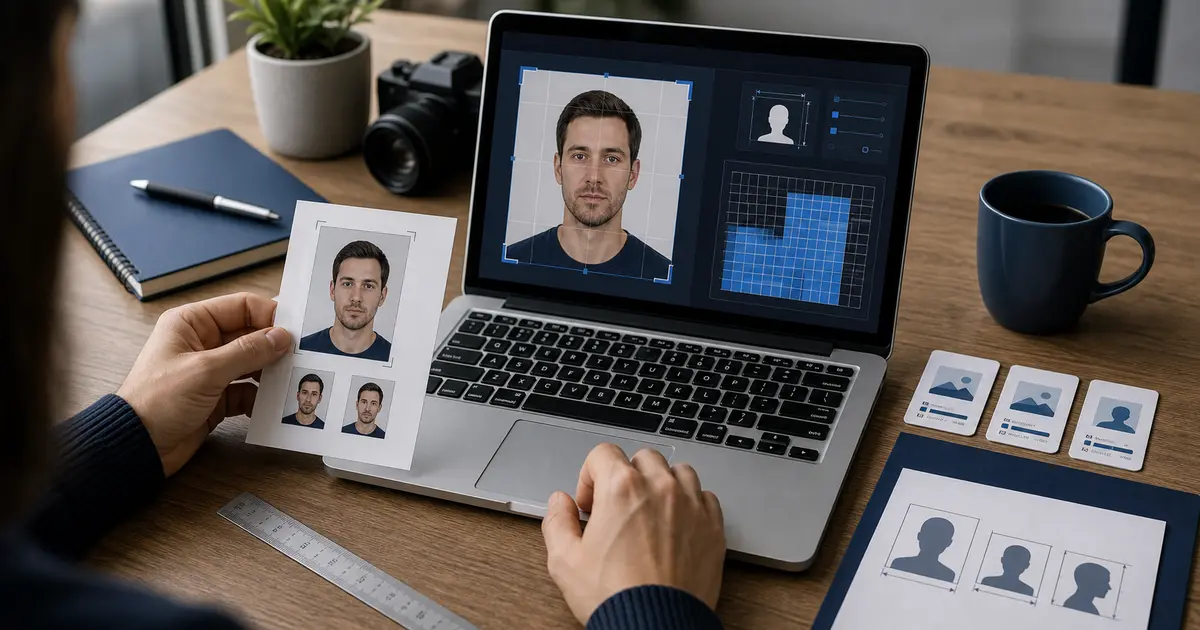
A lot of users search for passport photo DPI when what they actually need is one of two different things: a digital upload file that meets portal requirements, or a printed photo that measures correctly in the real world. DPI matters most on the print side. It tells the printer how densely to place image data on paper. For digital uploads, the authority usually cares more about file dimensions, file size, and aspect ratio than about the print resolution label.
This is why a passport photo DPI guide has to separate pixels, physical size, and print density. If those layers are mixed together, the user may end up optimizing for the wrong thing. A digital portal may reject a file with the wrong pixel dimensions even if it is “300 DPI.” A printed photo may come out at the wrong size even if the pixel count looks generous on screen.
The same confusion shows up in workflow questions like how to find DPI in Photoshop. In practice that is just a software-specific way of asking whether the file is being prepared for print at the right physical size. Photoshop can show the resolution, but the real decision is still whether the passport, visa, or ID output is being sized correctly for print or upload.
300 DPI vs 600 DPI for passport photos
| Setting | Best use | Main tradeoff |
|---|---|---|
| 300 DPI | Most routine passport and visa print workflows | Less headroom for heavy reprinting or weak source files |
| 600 DPI | Higher-detail print workflows and templates where the user wants sharper repeat prints | Larger files and more output weight without helping digital uploads directly |
For many home-print cases, 300 DPI is already enough if the source photo is strong and the print path keeps the size exact. 600 DPI becomes more useful when the user wants sharper print density, repeated template output, or more insurance against softness in small portrait prints. But 600 DPI is not a magic switch that fixes a weak source image or a badly scaled print dialog.
Common size conversions at 300 and 600 DPI
| Format | 300 DPI | 600 DPI | Supporting guide |
|---|---|---|---|
| 2x2 inches | 600 x 600 px | 1200 x 1200 px | 2x2 passport photo size |
| 35x45 mm | 413 x 531 px | 827 x 1063 px | 35x45 photo size guide |
| 50x70 mm | 591 x 827 px | 1181 x 1654 px | 50x70 passport photo size |
Those conversions are useful when you are preparing a file for a measured print workflow. They are not a substitute for country-specific digital rules. Canada, for example, separates physical photo specifications from its online renewal digital photo requirements. Singapore also publishes its own digital upload target instead of asking users to think in print DPI terms.
Why digital uploads usually care more about pixels than DPI
A digital passport upload usually checks whether the image fits the authority’s accepted file dimensions, file-size range, and sometimes face positioning. The portal does not usually “print” your file. That means the print-resolution label matters less than whether the file itself meets the upload rule. For that job, the better guide is the digital passport photo requirements guide.
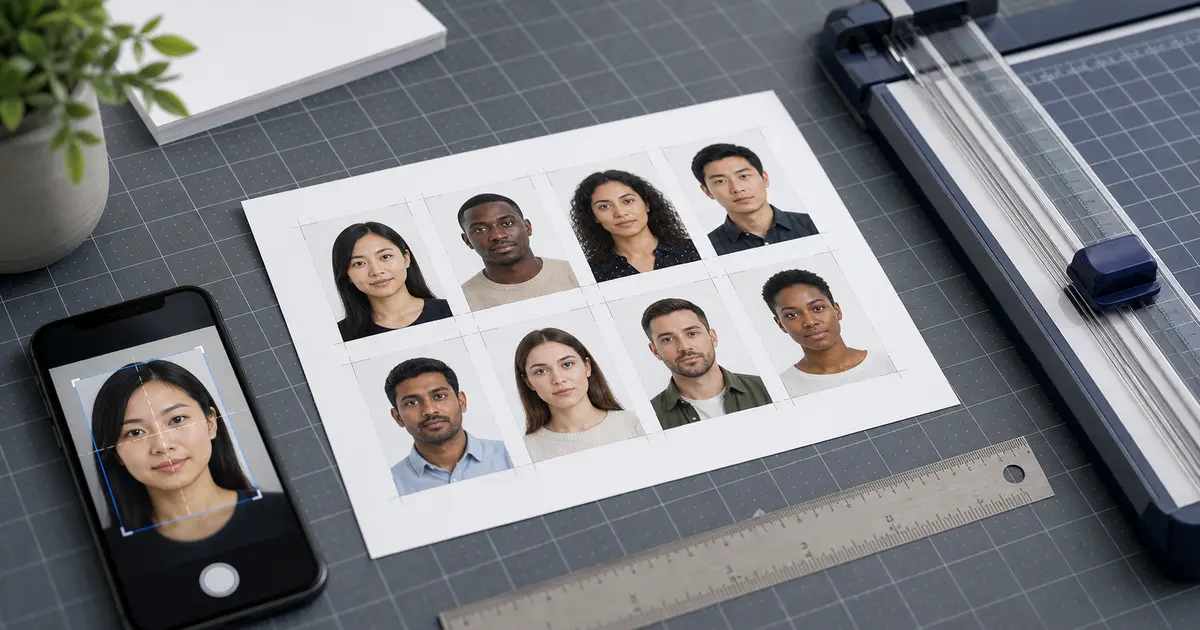
A printed passport photo is the opposite. The authority will measure the physical print, not the file metadata. That is why DPI matters more when the destination is paper and why template pages such as 4x6, A4, and Letter belong in the same cluster as this DPI guide.
Where users usually go wrong
- Treating DPI as the only quality signal and ignoring the authority’s pixel or file-size rules.
- Printing a correctly sized file with scaling enabled in the print dialog.
- Assuming 600 DPI will rescue a weak or blurry source photo.
- Sending a print sheet to a digital upload portal.
- Confusing paper size, photo size, and export size as if they were the same number.
Use Passlens when DPI needs to stay tied to the document preset
Passlens keeps the preset, the size math, and the export path together so you do not have to guess whether the file is being prepared for a print sheet or a digital upload. That matters most when the same source image could end up as a 4x6 print layout, an A4 office-sheet layout, or a direct digital upload.