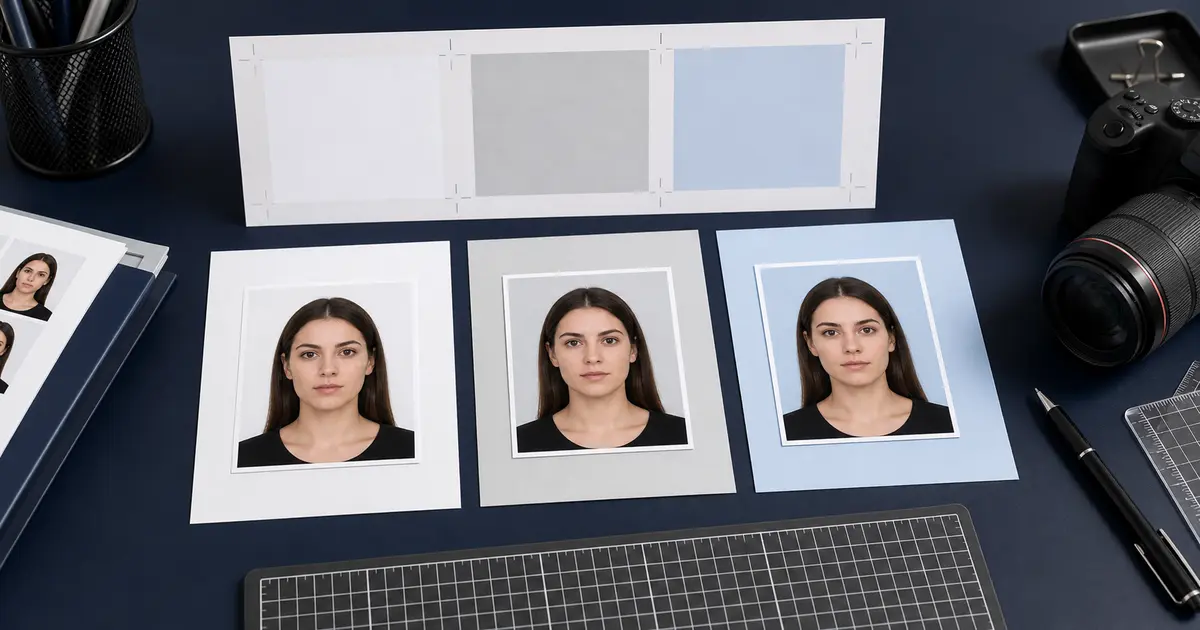
Student ID Photo Upload Guide (2026): Campus Card Photo Size, Background, and Rejection Checks
Prepare a student ID photo upload for a campus card or university ID portal. Covers common photo size patterns, plain backgrounds, face framing, and official university examples.

What most student ID photo uploads are trying to enforce
A student ID photo upload is usually not a passport application, but it is still an identity-photo workflow. Universities use the image on campus cards, access systems, library records, exams, and sometimes attendance systems. That is why many schools reject social selfies, group shots, hats, sunglasses, filters, heavy shadows, and cropped images where the face is too small.
There is no universal student ID photo size. One university may ask for a portrait-style upload with a plain background. Another may crop the image inside its portal. Another may publish a pixel target or file-size cap. The safest answer is to prepare a clean head-and-shoulders ID photo first, then adjust the final export to the school portal.
If your school instructions are still the main question, use the student ID photo requirements hub. If you want the broader ID-document rules first, use the ID photo requirements hub. If the file still needs to be built, go back to the passport photo maker. If you want the default workflow to stay in the browser until you choose otherwise, use the passport photo maker without uploading by default. If you only need a final review before upload, use the passport photo checker.
Student ID upload checklist
- Use a recent, front-facing photo.
- Keep the full face visible, with eyes open and no dramatic angle.
- Use a plain light background if the school does not name another background.
- Avoid hats, sunglasses, filters, heavy edits, and busy room backgrounds.
- Leave enough shoulders and headroom for the portal crop.
- Export as the file type and size the university asks for, usually JPEG or PNG.
The upload does not need passport-level millimetre math unless the school says so. It does need a clean identity portrait. That difference is why a student ID guide should sit near the ID photo and digital upload pages, not only near passport rules.
Official university examples
Cambridge, Oxford, Edinburgh, and Chapman all treat card photos as official campus ID submissions, not casual profile pictures. Their guidance varies, but the pattern is consistent: recent photo, clear face, acceptable background, no obvious distractions, and a file that the card office can use without guessing who the student is.
The details vary enough that you should not copy another school's exact crop or pixel size unless your own school gives the same instruction. Use other university pages as pattern recognition, then follow your portal.
How to prepare a student ID photo in Passlens
- Open your university card or student portal instructions.
- Choose an ID-style crop in Passlens rather than a social-media square.
- Clean the background if the school allows a plain digital background and the original room is distracting.
- Keep enough shoulders visible for a campus card crop.
- Export the image, then check the file type, pixel dimensions, and size against the school portal before upload.
Do not crop too tight
A tight face-only crop may look sharp but fail inside a campus-card template. Leave a little shoulder area unless the portal preview clearly says otherwise.