2x2 Photo Maker Online Free: Make a U.S. Passport or Visa Photo in Your Browser (2026)
Use a 2x2 photo maker online free to create a U.S.-style passport or visa photo in the browser. Covers 2 by 2 photo maker steps, 600x600 exports, head framing, upload checks, and print output.
What people usually mean by 2x2 photo maker
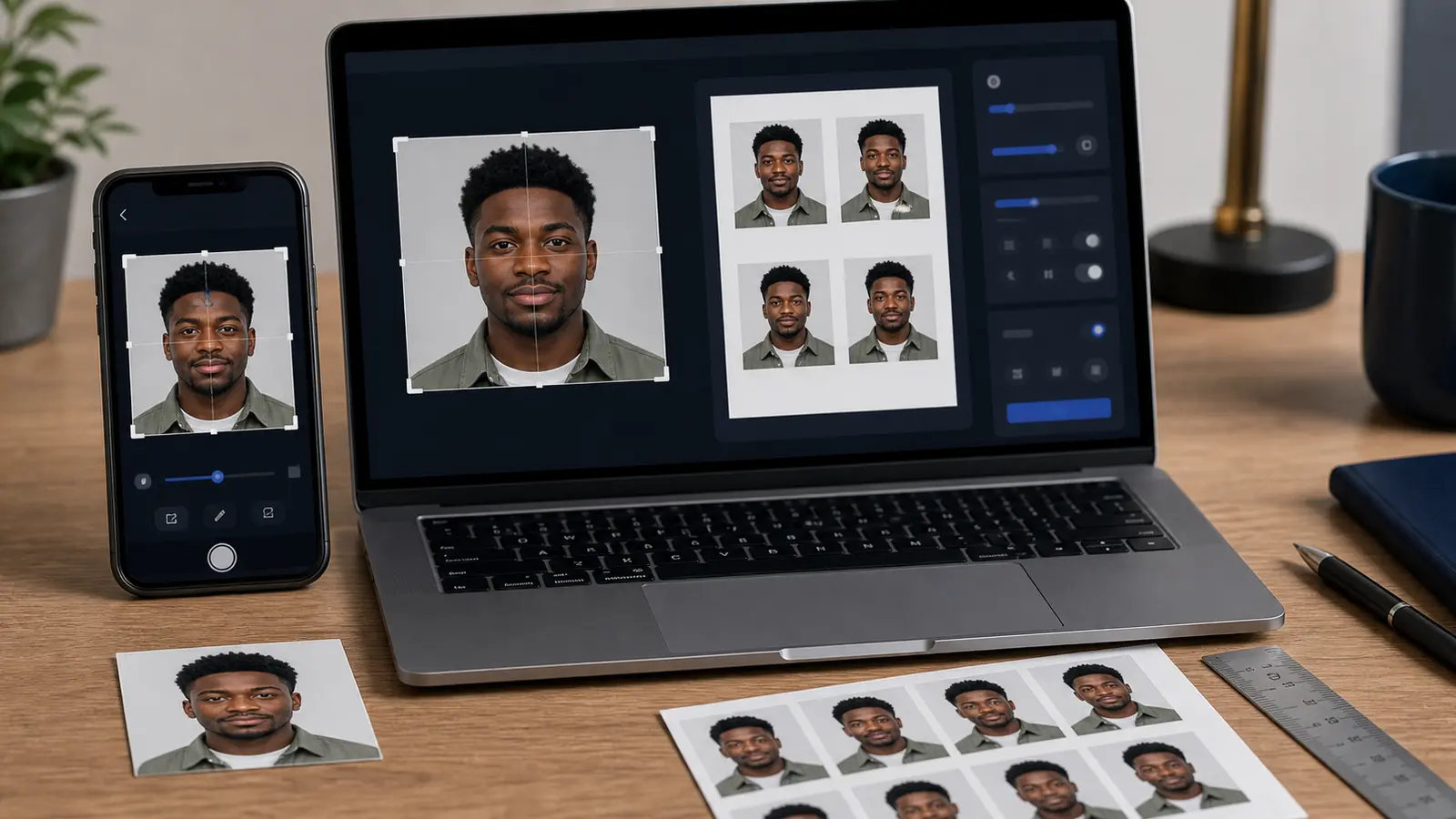
Most people searching for a 2x2 photo maker are not looking for a generic square cropper. They are usually trying to make a U.S.-style passport, visa, or immigration photo where the square matters, but the square is not the whole rule. They need the crop, the head framing, the background, and the final export to stay aligned all the way through.
The user usually already knows the shape. What they need is a quick way to get from a normal phone photo to a finished 2 by 2 passport photo without losing the head position, background, or export settings on the way.
2 by 2 photo maker: quick answer
A 2 by 2 photo maker should create a square photo that measures 2 inches by 2 inches. For common 300 DPI output, that is 600 x 600 pixels. For 600 DPI output, it is 1200 x 1200 pixels. The size matters, but the face also has to sit correctly inside the square.
If you searched for 2 by 2 photo maker online free, start with the document preset first. A blank square crop can give you the right canvas while still leaving the head too small, the background uneven, or the final file wrong for upload.
Why a 2x2 square alone is not enough
A lot of weak tools still behave as if the only job is to cut a photo into a square. That is where users get burned. A correct 2x2 output also depends on how large the face sits in the frame, how much room appears above the head, whether the background still looks clean, and whether the export is meant for print, digital upload, or both.
| Workflow check | Why it still matters in a 2x2 maker |
|---|---|
| Outer size | The square must still be exactly 2 × 2 inches or the matching digital equivalent. |
| Head framing | The face can be too small or too large even when the outer square is correct. |
| Background cleanup | A clean square with a messy background edge is still risky. |
| Upload readiness | Many U.S.-style workflows still check file size and digital dimensions separately. |
| Print readiness | A correct crop can still print wrong if the sheet is scaled badly. |
The best way to use a 2x2 photo maker online
- Start from the U.S. passport or visa-style preset instead of a blank crop box.
- Fit the face to the right position inside the square, not just inside the canvas.
- Review the background edge around hair, ears, jawline, and shoulders.
- Choose whether you need a digital upload file, a print sheet, or both.
- Do one last check on the final export before you stop.
That order matters because it keeps the workflow tied to the document. Users usually get in trouble when they make the square first and try to solve the rest later.
How a 2x2 photo maker page differs from a pure size page
A size page answers the math: how big the square is, how many pixels it represents, and which rules usually travel with it. A maker page answers the software question: how do you actually produce a 2x2 result without leaving the crop, the background, and the export to chance? Both matter. They just solve different parts of the same task.
That is why this page should be used alongside the 2x2 passport photo size guide and the U.S. passport photo guide. One handles the size rule. One handles the country rule. This page handles the browser workflow that gets the user from source image to finished file.
Where 2x2 maker workflows usually go wrong
The most common failure points are predictable. The user keeps the face too small because the square looks visually neat. They compress the JPEG too hard to fit an upload limit. They print the file through a driver that scales it down without warning. Or they use a generic editor that produces a square image but leaves the final compliance check entirely on their shoulders.
That is exactly why a serious 2x2 photo maker needs to connect the editing step to the export step. If the tool makes the crop easy but the output uncertain, the user is still doing too much of the job manually.